
Yes—you can add a countdown timer to a link-in-bio page when your builder supports a countdown block or a compatible embed. If it supports neither, link to a separate event page with the countdown instead. The key is to show a real deadline, state the time zone and give visitors a useful action when the timer ends.
TL;DR
- Can you add a countdown timer to link in bio page? Yes, with a supported block or embed.
- A linked event page is an alternative when your creator website cannot display a live countdown.
- AkaMe fits creators who want a personalized creator website on a custom domain linking to existing platforms.
- Choose the deadline, destination and expired state before adding a timer.
Can you add a countdown timer to your link-in-bio page?
Yes, but the method depends on your link-in-bio website builder—not on whether you use a custom domain. There are 3 setup routes: a built-in countdown, an embedded countdown or a link to a separate countdown page.
AkaMe brings your important destinations together on a personalized creator website. When choosing any builder for a countdown-led campaign in 2026, check the actual editor and preview rather than assuming that customization includes timer support.
| Setup route | Best for | Main benefit | What to check |
|---|---|---|---|
| Built-in countdown | Creators whose editor includes a timer | You configure the countdown inside the page editor | Deadline settings, time zone and expired state |
| Embedded countdown | Creators whose builder accepts compatible embeds | You display an external countdown within the page | Embed permission, mobile display and accessibility |
| Linked event page | Creators who already have a launch or event destination | You keep the countdown alongside the event details | The destination works and the extra click is justified |
A countdown image is different. A static image does not keep counting down after someone opens the page, so use it as an announcement graphic rather than presenting it as a live clock.
Why this matters
A timer should answer a practical question: When does this happen? A visitor arriving from your social profile needs enough context to understand both the deadline and the next step.
For a livestream, that action might be opening the event page. For a course launch, it might be joining an existing notification list. For an OnlyFans creator, it could be visiting an announcement or scheduled-event destination without changing where subscriptions are managed.
The countdown supports the action; it is not the action. A clearly labeled link with an exact date is more useful than a moving clock that never explains what happens next.
Built-in countdown: configure it inside your page editor
A native countdown is the most direct route when your editor includes one. Look for a block labeled countdown, timer or event, then inspect its settings before publishing.
Set the deadline from the event's actual schedule. Check whether the editor asks for your local time, the event's time zone or another reference. Those are not interchangeable, especially when your audience lives across different regions.
Use a short heading that explains the event. Follow it with a button that names the destination, such as opening the livestream or viewing the launch details. Avoid a vague label that makes visitors guess.
The trade-off is control: your options depend on the settings the builder provides. Confirm that its date display, styling and post-deadline behavior match your campaign before you build the page around it.
Embedded countdown: check compatibility before designing around it
An embed displays content supplied by another service within your page. This route requires your builder to accept the embed format that the countdown service supplies.
Do not assume an ordinary link field accepts embed code. A field designed for a destination URL is not the same as an HTML or embedded-content block. Check the editor's instructions before pasting anything.
An external countdown adds another component to maintain. You need to test both the countdown itself and how your page displays it, particularly inside a narrow mobile layout.
For a 2026 campaign, preview the finished page rather than relying on a demonstration from a different layout. Keep the deadline visible as ordinary text, too, so the event still makes sense if the embedded content fails to display.
Linked event page: keep the timer with the event
A separate event page is a useful choice when the destination already contains the schedule, registration or viewing details. Your link-in-bio page introduces the event and sends visitors there.
This approach avoids needing an on-page timer. It also keeps event information together instead of asking you to maintain the same details in several places.
The trade-off is the additional click. Make that click clear: tell visitors what they will find at the destination, and send them to the relevant event rather than a general homepage.
If the deadline is the only information visitors need, a dated announcement and a direct link can be enough. You do not need animation to communicate a schedule.
Why countdown setup varies
The right approach depends on what your page can display and what the event needs. Check these factors before choosing a route:
- Editor support: A built-in block, an embed field and a standard link field serve different purposes.
- Deadline type: A shared launch time needs a fixed deadline. A visitor-specific countdown describes a different experience and needs an accurate explanation.
- Time zone: Your settings must match the event schedule, and your written date must make sense to the audience.
- Destination: A livestream page, registration form and notification signup each need a different button label.
- Expired behavior: The page needs a useful state after the countdown reaches zero.
- Mobile layout: The timer, date and main link must remain readable together on a small screen.
These checks are more useful than choosing a timer because its animation looks good. Decide what information the visitor needs first; choose the display second.
How do you set up a countdown without confusing visitors?
Use this sequence whether you add a native block, embed a timer or link to an event page. It keeps the page focused on the event rather than the widget.
Define the event
Write a plain-language description of what happens at the deadline. Distinguish between registration closing, an event beginning and a new release becoming accessible.
These moments need different messages. A timer labeled only as a launch leaves visitors guessing whether they should act now or return later.
Set the deadline
Use the confirmed date and time from the event's source of truth. Include the year and a clear time-zone reference in the supporting text when the context needs them.
For a 2026 event, use an unambiguous written date rather than a short numeric date that different audiences can read differently. If the schedule changes, update the countdown and the visible announcement together.
Choose the action
Decide what a visitor can do before the deadline. That might be viewing details, setting a reminder through the event platform or joining an existing notification list.
Then write the button label around that action. Do not send visitors to a closed destination without explaining what they can do there now.
Test the page
Open the published page, not just the editor preview. Follow the main link and confirm that the destination matches the announcement.
Check the page in the browser people use to open your social profile links, too. Look for clipped text, overlapping elements and a countdown that pushes the actual action out of view.
Plan the ending
Decide what replaces the countdown. An upcoming event can become a live-event link; a completed event can become a replay or recap when one exists.
If your builder cannot switch the content automatically, plan a manual update. A countdown is not finished until the page still makes sense after zero.
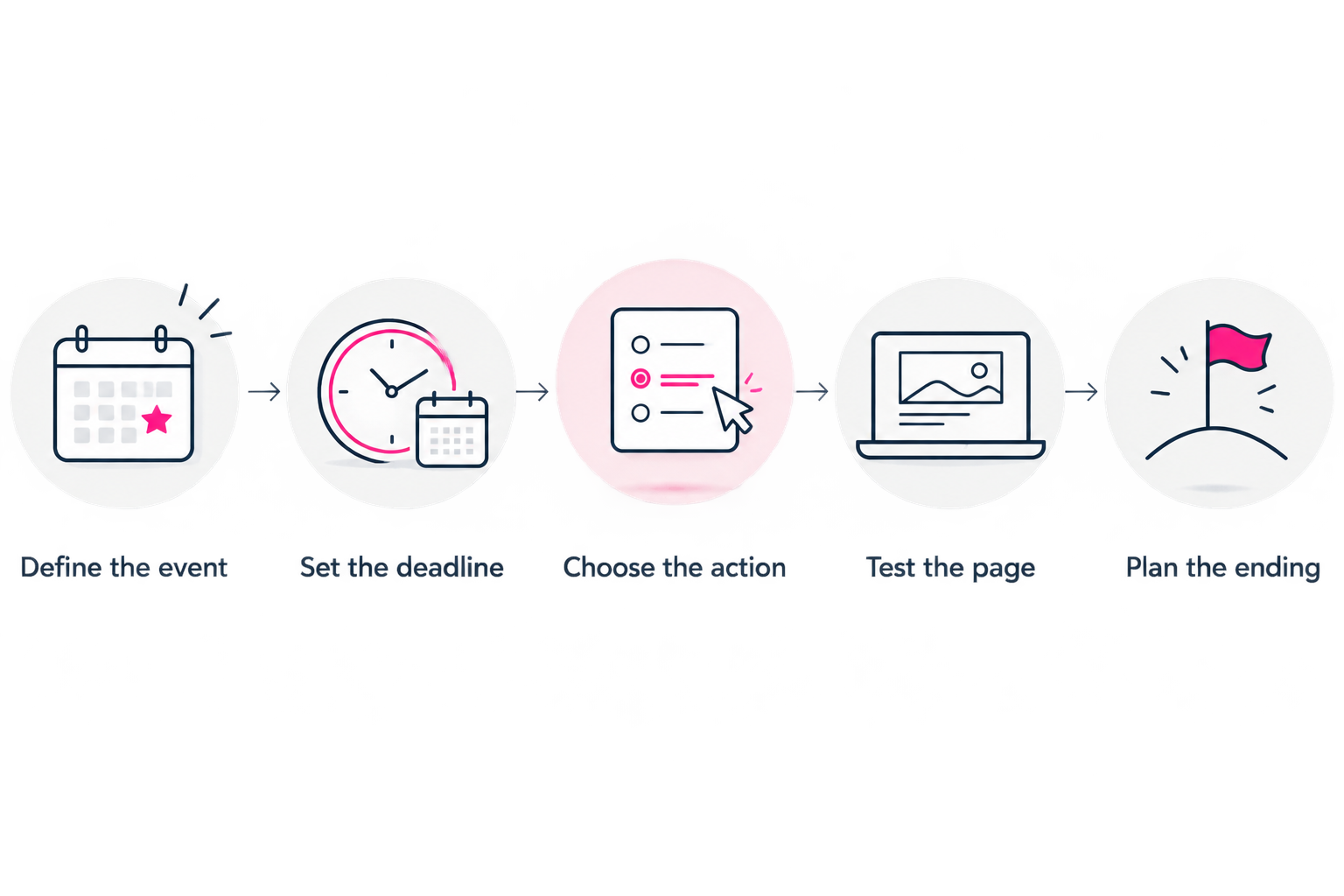
Plan the destination and the ending before publishing the countdown.
What should you test before publishing?
Run 6 checks on the finished page. These are practical acceptance checks, not a reason to make the setup complicated.
- Schedule: Compare the displayed deadline with the original event details.
- Context: Confirm that the heading explains what starts or ends.
- Destination: Open the main link and check the relevant event or announcement.
- Mobile display: Read the timer, supporting date and button on your phone.
- Accessibility: Keep essential deadline information in readable text rather than only inside an animation or image.
- Expiry: Inspect the settings or use a separate test configuration to check what happens after zero.
Test 2 page states: before the deadline and after it. A page that works only while the clock is running leaves the job unfinished.
For a recurring 2026 event series, check each new event's date instead of changing only the heading. Reusing a layout is useful; accidentally reusing an old deadline is not.
Choosing the right fit
Choose your creator website around its main job. A countdown is one campaign element, while your address, presentation and important links serve visitors between campaigns as well.
AkaMe is best for creators who want a personalized creator website on their own domain linking to platforms they already use. Registration and publishing are handled for the creator, with customization, photo selection assistance and a preview before checkout. Photo assistance supports your choices; you still choose how you present yourself.
That workflow suits creators whose subscriptions, products or services already live elsewhere. The website acts as a recognizable branded destination connecting those existing parts of the business.
If a live countdown is essential, make timer support an explicit selection requirement and inspect the intended implementation. A custom domain identifies your destination; it does not determine which widgets a builder supports.
When comparing Linktree or Linkme for this purpose, assess the current editor against the same checklist rather than assuming a timer is included. Carrd suits creators who prefer direct control over website building and domain configuration. Choose according to the work you want to manage, then verify the specific countdown method.
FAQ
Can I add a countdown timer without writing code?
Yes, if your builder includes a built-in countdown block. If it does not, linking to an existing event page with a countdown avoids adding code to your link-in-bio page.
Can I paste countdown code into a normal bio link?
No—a normal link field is not an embed-code field. Use a supported embed block or link to the page that hosts the countdown.
Do I need a custom domain to display a countdown?
No, countdown support depends on the page builder rather than the domain. A custom domain gives your creator website a personalized address; timer support is a separate feature to check.
Can I use a countdown for an OnlyFans announcement?
Yes, a countdown can communicate a scheduled creator announcement when your chosen builder supports it. Explain the event clearly and link to the relevant destination where you manage it.
Will a countdown automatically increase subscriptions or sales?
A countdown does not guarantee more subscriptions or sales. Use it to communicate a genuine deadline and make the next action clear.
What should happen when my countdown reaches zero?
Your page should replace the upcoming-event message with a useful next step. Link to the live event, a relevant recap or another accurate destination, depending on what actually exists.
One last thing
The most useful countdown improvement happens before you add the timer: write the sentence visitors should see after it ends. That forces you to decide whether you are announcing a beginning, a closing deadline or a transition to something else.
For your next 2026 launch, keep the page useful on both sides of that moment. Give visitors a recognizable destination and a clear action—not just a clock.
Preview an AkaMe creator website, personalize your page and explore a domain that fits your creator name.
Preview your creator website
Personalize your page, bring your important links together and explore your own domain.