
Yes, you can add an email signup form to your link-in-bio page through a supported signup block, an embedded form, or a button linking to a hosted signup page. An on-page form depends on your builder’s features; a signup link lets you send visitors to a form managed by your email platform.
TL;DR
- Can you add an email signup form to link in bio page? Yes: use a supported form or signup link.
- AkaMe fits creators who want a custom-domain creator website linking to an existing newsletter signup page.
- Choose an on-page form for direct signup; choose a hosted form to keep signup management with your email platform.
- Test the complete subscription process on mobile, including confirmation and the first email.
Can you add an email signup form to your link-in-bio page?
Yes. The main decision is whether visitors subscribe on your creator page or follow a link to subscribe elsewhere. Both approaches connect your social audience with your email list, but they require different setup work.
For a creator website such as AkaMe, linking to your existing signup destination keeps the website focused on bringing your important links together. Choose an embedded form only when your website builder explicitly supports the integration you need.
| Signup method | Best for | Practical benefit | Trade-off |
|---|---|---|---|
| Native signup block | Creators whose builder supports their email workflow | Visitors enter their details on the creator page | You need to verify where subscriber records go |
| Embedded form | Creators whose builder accepts their email provider’s form code | Uses the provider’s form within your page | Requires compatible embedding and mobile testing |
| Hosted signup link | Creators who already manage a newsletter elsewhere | Keeps the signup form with the email platform | Visitors leave the creator page to subscribe |
A form collecting an address is only the beginning. Your setup also needs to record the subscription correctly and deliver whatever you promised beside the signup button.
Why this matters
Your social bio is a place where people decide what to do next. If email updates matter to your business, give that action a clear label instead of hiding it among unrelated destinations.
For your 2026 creator website, start with the subscriber’s reason to join—not the form’s appearance. A clear promise, a working signup path, and a recognizable destination matter more than whether the form sits directly on the page.
Native signup block: subscribe without leaving the page
A native signup block belongs to the link-in-bio builder itself. When supported, it lets visitors submit their details without opening a separate signup destination.
Best for: creators whose builder already supports the subscriber workflow they need. Before choosing this approach, find out whether submissions reach your email platform automatically or need a separate transfer.
Check the practical details:
- Subscriber destination: Know where a submitted address is stored.
- Permission wording: Explain what the visitor is agreeing to receive.
- Confirmation behavior: Check whether subscribing requires an email confirmation.
- Submission feedback: Make sure the visitor sees what happens next.
- List access: Understand how you access and manage collected contacts.
The benefit is a direct on-page action. The trade-off is dependence on the builder’s supported fields, connections, and subscriber-management options. A form that looks right but sends contacts somewhere you never check is not a finished setup.
Embedded form: use your email platform’s form on your page
An embedded form displays a form from another service within your creator website. This requires your website builder to accept the relevant embed code and your email platform to provide it.
Best for: creators who want an on-page form while keeping form management with their email platform. The appeal is continuity: you configure the signup destination in your email service, then display the compatible form on your website.
The trade-off is implementation. A builder that accepts a link does not necessarily accept scripts, custom HTML, or every kind of embed.
Before publishing, check that the form fits the page, that every field remains usable on mobile, and that success messages stay visible after submission. If the embed creates a cramped or broken experience, use a hosted signup link instead.
Hosted signup link: keep your existing email workflow
A hosted signup page lives outside your link-in-bio website, usually with the service managing your email list. You add a clearly labeled button that takes visitors there.
Best for: creators who already have a working newsletter signup page and want a straightforward connection. You do not need to rebuild the form inside the creator website.
This approach separates responsibilities. Your creator website introduces you and directs visitors; your email platform handles the signup form and the email workflow you configure there.
The trade-off is the move to another page. Keep the creator name, signup promise, and visual cues consistent so visitors recognize that they have reached the right destination.
For a 2026 launch, a working hosted signup page is a sensible starting point. Choose an embed later only if it serves your workflow—not just because it looks more integrated.
Why email signup setup varies
The right method depends on how your website and email platform work together. Check these factors before changing tools or rebuilding a working form:
- Builder support: Native forms, embeds, and ordinary links are different capabilities.
- Email platform compatibility: Your chosen method must send subscriptions to the intended list or audience.
- Information requested: Extra fields need a clear purpose and enough room to remain usable.
- Confirmation settings: A confirmation step changes what subscribers must do after submitting.
- Mobile presentation: Forms and hosted pages need to work from a social app’s browser.
- Existing workflow: Keep useful welcome messages, subscriber preferences, and list organization connected to the new entry point.
Choose the method around the subscription process, not around a feature label. “Supports forms” tells you less than a successful test subscription does.
How do you set up email signup from your creator page?
Use this sequence for your 2026 setup. It works whether the form appears on your website or opens through a button.
- Set the promise. Decide what subscribers will receive and describe it plainly. Name the subject, format, or type of update rather than offering vague access to more content.
- Build the form. Create the signup destination in the system that will manage it. Ask only for information you have a clear reason to collect.
- Connect the page. Add the supported form block, compatible embed, or hosted signup link. Use a label that describes the action.
- Test the journey. Subscribe from your published page using an address you control. Follow any confirmation step and check the resulting subscriber record.
- Check delivery. Confirm that the first message matches the promise made on the page. Check that unsubscribe and preference controls work as intended.
The final check is not whether the button opens. It is whether a visitor can become a subscriber and understand what they signed up for.
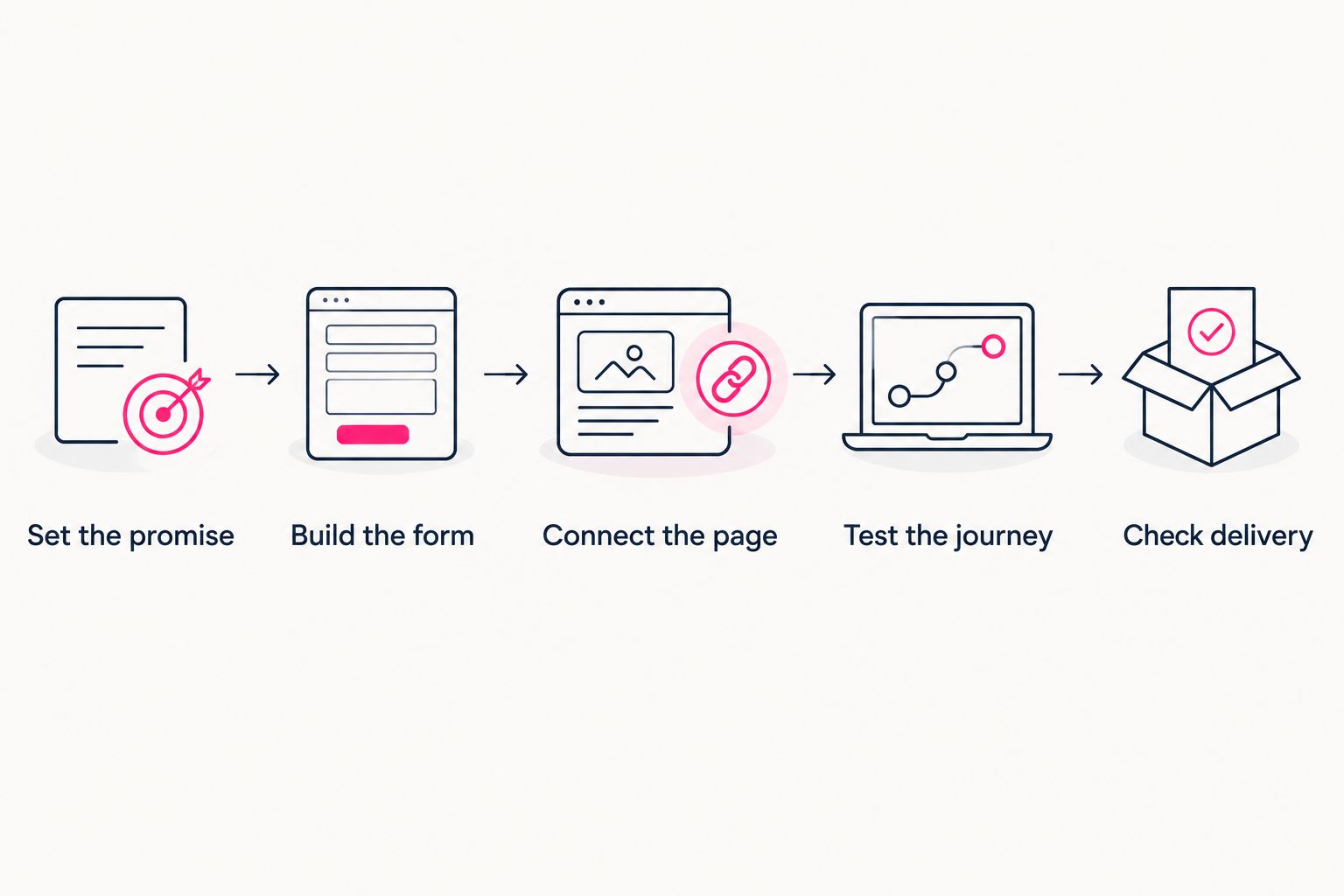
Test the complete subscription path, not just the link to the form.
What should your email signup button say?
Describe what people get, not just what the button does. A label such as “Get new episode updates” gives visitors more context than “Submit.”
Match the wording to your actual email content. A musician might invite release updates; a coach might offer practical training notes; a newsletter writer can name the newsletter itself. These are examples, not promises you need to copy.
Keep the supporting copy close to the action. If people will receive recurring emails, say so before they subscribe. Avoid presenting a newsletter subscription as a general contact form or a way to send private messages.
Placement should follow your current priority. Put email signup near the top when list building is the main purpose of your page; give another action priority when your immediate goal is directing visitors to an existing product, subscription, or service.
Choosing the right fit
AkaMe is best for creators who want a personalized, custom-domain website linking to subscriptions, products, services, and newsletter signup pages they already use. Registration and publishing are handled for the creator, with customization, photo selection assistance, and a preview before checkout.
That makes the creator website the branded front door rather than a replacement for every business tool behind it. You can bring important destinations together while your email platform continues managing the newsletter signup process.
A custom domain gives that front door a recognizable address. It does not, by itself, collect subscribers or send newsletters; those jobs still need a working form and email workflow.
For your 2026 decision, separate website building from newsletter management. Comparing online newsletter builders means assessing how you create emails, manage subscribers, and deliver messages—not just how the signup form looks on a creator page.
If direct control over website building and domain configuration is your priority, Carrd is suited to that workflow. If you are considering Linktree or Linkme, check the current signup method and email connection against your actual requirements rather than assuming all link-in-bio tools handle subscriptions identically.
How do you test email signup on mobile?
Open your published creator page from the social profile visitors will use. Testing only the website editor skips the real starting point.
Run through these checks on your phone:
- Find the invitation: Is the email signup action easy to identify among your other links?
- Open the destination: Does the button lead to the intended form rather than a general homepage?
- Complete the fields: Can you read the labels and submit without horizontal scrolling?
- Read the result: Does the success message explain the next step?
- Confirm the subscription: If confirmation is enabled, can you complete it from the received email?
- Check the record: Does the subscriber appear in the intended list with the expected status?
Then test an invalid email entry. A readable error message helps visitors correct a mistake; a silent failure leaves them guessing.
If a form behaves differently inside a social app’s browser, compare the same journey in your phone’s browser. Fix the broken step before directing people to subscribe.
What should you measure after publishing?
Measure the steps you can actually observe. A signup-button click, a submitted form, and a confirmed subscription describe different events.
For your 2026 review, keep those distinctions clear. Button clicks show interest in the signup destination; completed subscriptions show that people finished the required process.
If your tools support source labels or campaign parameters, use them consistently to distinguish the creator-page signup path from other entry points. Confirm that the destination accepts them and that they do not break the form.
Do not count every signup-button click as a new subscriber. Review completed subscriptions in the system managing your email list, then use page activity to understand the steps before signup.
FAQ
Can I add an email signup form without coding?
Yes, if your builder offers a suitable native signup block, or you link to a hosted signup form. An embedded form depends on the code and embedding options supported by your website builder.
Can I use an existing newsletter signup page?
Yes, you can link your creator page to an existing hosted newsletter signup page. Use a clear button label and test that it opens the intended form.
Is an embedded signup form better than a signup link?
An embedded form keeps signup on the creator page, while a signup link keeps the form on its hosted destination. Choose based on compatibility, mobile usability, and how you manage subscribers.
Can I connect email signup to an AkaMe creator website?
You can use an AkaMe creator website to link visitors to an existing newsletter signup destination. Your email platform continues handling the signup form and the newsletter workflow configured there.
Do I need a custom domain to collect email subscribers?
No, a custom domain is not required to collect email subscribers. It gives your creator website a recognizable address, while the signup form and email platform handle subscriptions.
Should I ask for a name as well as an email address?
Ask for a name only when you have a clear use for it, such as personalizing messages. Keep the form focused on information needed for the subscription you are offering.
Does a signup-button click mean someone joined my email list?
No, a signup-button click does not confirm a subscription. Check completed subscriber records, including any required confirmation, in your email platform.
Related guides
- Link-in-bio tools for newsletter writers
- Design a link-in-bio website around one main action
- Check your creator website on mobile
One last thing
Your confirmation message deserves the same attention as your signup button. Tell new subscribers what happens next, then make sure the first email follows through.
Ready to give your newsletter a branded front door? Start your creator website, preview your AkaMe page, personalize it, and explore a domain that fits your name.