

Yes, you can embed a video on your link-in-bio page when your website builder supports the video host or provides a compatible embed block. The video plays inside your page rather than sending visitors elsewhere, but playback still depends on the source video's permissions and your builder's implementation.
TL;DR
- Can you embed a video on your link in bio page? Yes, when your builder supports the source and playback.
- Choose an embedded player for on-page viewing; choose a video link when the destination matters more.
- AkaMe fits creators who want a personalized creator website on a unique custom domain linking to existing platforms.
- Test the published page on mobile before adding its address to your social profiles.
Can you embed a video on your link in bio page?
Yes—provided your builder can display a working video player, not just a link preview. Some builders accept a supported video URL. Others provide an embed-code field, while a standard link block simply opens the destination.
For your 2026 creator website, choose the experience you actually need:
| Option | Best for | Main benefit | Trade-off |
|---|---|---|---|
| Embedded player | Watching without leaving your page | Visitors can play the video beside your other links | Requires compatible embedding and permission from the video host |
| Video link | Sending viewers to the original channel or platform | Provides a direct route to the source video | Visitors leave your creator page to watch |
| Linked thumbnail | Giving a video a visual introduction | Combines an image with a clear viewing destination | An image alone does not provide on-page playback |
An embedded player is not automatically the better choice. If you want someone to watch a channel upload and explore that channel, a direct link serves that purpose. If a short introduction explains your offer before visitors choose a destination, on-page playback fits better.
For a channel-focused setup, see the guide to link-in-bio tools for YouTube creators.
Why this matters
Your link-in-bio page has a job: help visitors understand who you are and what to do next. Video belongs there when it supports that job—not just because the builder offers a player.
A coach can introduce a teaching style. A musician can feature a performance, while an OnlyFans creator can use a suitable public introduction alongside clearly labeled profile links. In each case, choose material appropriate for the page and its audience.
Decide the next action before choosing the video format. A visitor who wants your booking link should not have to search past a large player to find it.
How do you add an embedded video?
The exact controls differ between link-in-bio website builders. Use this sequence to check compatibility, add the player and confirm that visitors can actually watch.
1. Choose the video's job
Write down what the video should explain: your work, your latest release or the reason to visit a destination. Pick the clip that answers that question directly.
Keep its role distinct from the main button. An introduction can explain your coaching approach while a separate booking link handles the next step.
2. Check the source permissions
Confirm that the video is viewable by your intended audience and that its host permits embedding. A video that plays when you are signed in can still be inaccessible to a visitor.
For a YouTube video, the platform's sharing controls provide embed code when embedding is permitted. Use the host's own sharing instructions rather than copying code from an unrelated website.
3. Use the correct builder block
Look for a video block, a supported-media block or a custom embed field. Paste a normal video URL only where the builder asks for a URL; paste embed code only where it accepts code.
A link button and an embed field do different things. Pasting player code into a button's destination field does not turn that button into a video player.
4. Set the surrounding context
Give the video a useful heading and place the relevant next action nearby. Explain what someone will watch before asking them to press play.
Use a descriptive label such as Watch my coaching introduction rather than Video. Visitors should understand the destination even if the preview image does not load.
5. Publish and test
Check the published page, not only the editor preview. Open it while signed out of the video service, then test it from the social app where your audience finds your bio.
A working desktop preview does not settle the mobile experience. Check the player controls, the surrounding layout and the route back to your other links.
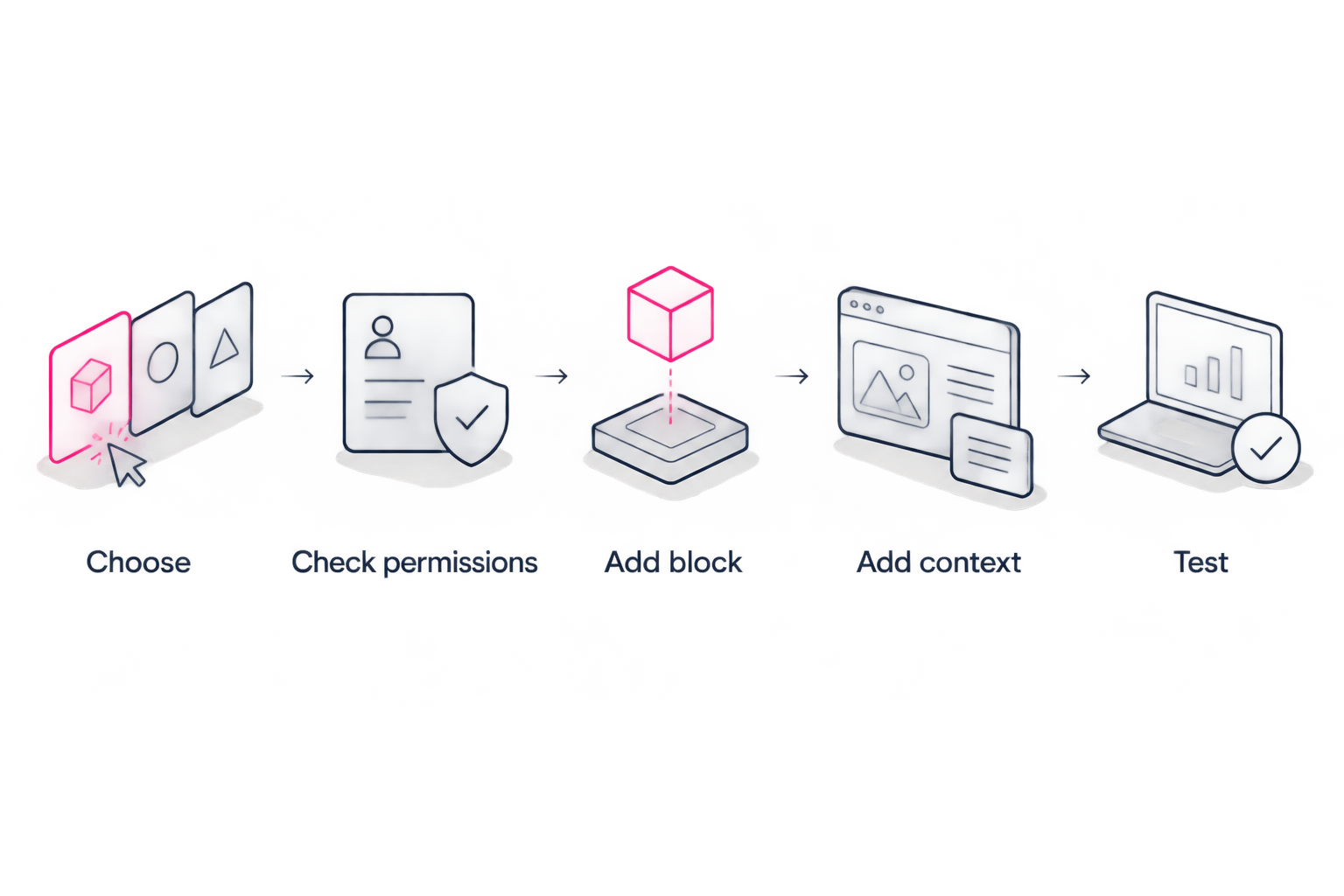
Check the published player as a visitor, not just inside the editor.
The sequence matters because a display problem and a permission problem need different fixes. Rearranging your page cannot make a restricted source video accessible.
Which video format should you use?
Match the player to the actual shape of your footage. A 16:9 aspect ratio suits landscape footage, a 9:16 aspect ratio suits vertical footage, and a 4:3 aspect ratio is another established video format.
These are shape descriptions, not performance targets. Do not crop a useful demonstration just to make its player resemble the rest of your page.
Landscape video: best for wide demonstrations
Landscape footage gives horizontal subjects room. It works well when viewers need to see a performance, a workspace or a screen demonstration.
The trade-off is height on a narrow phone screen: details inside the footage can become small. Check whether labels and demonstrations remain understandable without enlarging the player.
Vertical video: best for portrait-led introductions
Vertical footage gives a portrait-oriented subject more space on a phone. It is useful when the introduction was composed for that shape from the start.
Its trade-off is page length. Keep the next action easy to find rather than letting a tall player separate your introduction from the links it explains.
Linked video: best when the source is the destination
Use a link when your goal is to bring viewers to the original video page. This also provides an alternative when your builder does not offer the embed you need.
The trade-off is leaving your page. Make that handoff clear with a label that describes what opens, rather than making a static image look like a working embedded player.
Why video embedding varies between pages
In 2026, successful embedding still depends on several separate controls. A custom domain changes your page's address; it does not grant video playback support.
- Builder support: The editor must accept the source URL or the required embed code. A general link field is not enough.
- Source permissions: The video host controls whether a particular video can play on another website.
- Viewer access: Sign-in requirements, private settings and other access restrictions affect who can watch.
- Browser behavior: Autoplay and sound behavior depend on browser rules, device settings and the player's configuration.
- Layout handling: The page needs to fit the player to the available width without hiding controls or stretching the image.
Check these separately. If the source video is inaccessible, changing the page layout will not solve it; if controls are cut off, changing source permissions will not fix the layout.
Should your video play automatically?
Let visitors choose when to play. Autoplay with sound is restricted in common browser environments, and the resulting behavior is not consistent enough to make it essential to your page.
For a 2026 setup, treat click-to-play as the dependable design choice. Your heading, image and main links should explain the page even before the video starts.
Do not make spoken audio the only way to understand your offer. Add a concise written summary and use captions when your video host provides them, checking that the captions match the recording.
Can a video slow down your link-in-bio page?
Yes, an embedded player adds resources beyond plain text and links. The effect depends on the player, its loading behavior and the rest of your page—not simply the video's running time.
Start with the player that serves your main goal. If you want to feature a broader collection, consider linking to the channel or playlist rather than loading every video into the landing page.
Test the page using a phone and a mobile connection. Watch for delayed controls, shifting content and links that become difficult to tap while the player loads.
What should you check before publishing?
Use this practical 2026 playback check before updating your social bio. It catches problems that an editor preview can hide.
- Signed-out access: Open the page without an account session that gives you special access to the source video.
- Mobile layout: Check that the full player fits and its controls remain usable.
- Social-app opening: Follow your bio link from the app itself and test playback there.
- Silent understanding: Read the page without starting the video. Your purpose and main action should still be clear.
- Destination accuracy: Test the buttons around the video, including the route to the original source if you provide one.
- Accessibility: Check captions where available, descriptive link labels and keyboard access to the player's controls.
If playback fails, open the source video directly. When the source works but the embed does not, check embed permission and builder compatibility before changing unrelated parts of your website.
Choosing the right fit
Choose a builder around the experience you need visitors to have. If embedded playback is essential, inspect a working published example and test the relevant source before committing to that workflow.
AkaMe is best for creators who want a personalized website on a unique domain linking to their existing platforms. The AkaMe creator website brings your important destinations together, with domain registration and publishing handled for you.
Customization, photo selection assistance and a preview before checkout help you shape that destination before publishing. Photo suggestions support your choices; they do not replace them. You can explore the AkaMe creator website with your own links and presentation in mind.
That focused setup fits creators whose subscriptions, products or services already live elsewhere. If direct control over website building and domain configuration is your priority, Carrd suits that hands-on approach.
Keep the video decision separate from the domain decision. A recognizable address is useful for your brand; a working player is a specific feature to confirm in the website experience you choose.
FAQ
Can I paste any video URL into my link-in-bio page?
No. A video URL creates an embedded player only when the builder supports that source and you use the appropriate block. A standard link field usually creates a route to the video instead.
Can I embed a private video on my creator website?
Embedding does not remove a video's access restrictions. Your viewers still need whatever permission or sign-in the video host requires.
Does a custom domain let me embed videos?
A custom domain does not provide video embedding by itself. Playback depends on your website builder, the video host and the source video's settings.
Is an embedded video the same as uploading a video file?
No. An embedded player displays video through a source service, while uploading a file gives the website platform a file to host or process. Check which method your builder accepts.
Why does my video work in preview but not on my published page?
Preview and published playback can differ because of viewer permissions, embed settings or the published integration. Test the source while signed out, then check the published page's video block.
What should I do if my builder does not support video embeds?
Use a clearly labeled video link or a linked thumbnail to send visitors to the original video. You can still introduce the video with a short written description on your page.
One last thing
Your video should add context, not carry the whole page. For your 2026 launch, pause playback and ask whether a new visitor can still identify you, understand your offer and find the next step.
Preview an AkaMe creator website, personalize the presentation and explore a domain that fits your name. Bring your most important destinations together first; choose the video treatment that supports them.
Preview your creator website
Personalize your page, bring your links together and explore a domain that fits your creator name.