
Yes, you can password protect pages on a creator website if your website builder supports page-level access controls. A shared page password works for private previews; individual member accounts suit content that needs access tied to a specific person. Protecting a page does not automatically protect the files or external destinations linked from it, so check those separately.
TL;DR
- Can you password protect pages on a creator website? Yes, if the builder supports access controls.
- Page passwords suit private previews; member logins suit individual access permissions.
- A custom domain identifies your website. It does not decide who can open a page.
- AkaMe fits creators who want a branded website linking to subscriptions, products or services hosted elsewhere.
Can you password protect pages on a creator website?
Yes. The right method depends on whether you want to share a private link with collaborators, restrict access for individual members, or direct visitors to content already protected elsewhere. Choose the access model before choosing the website builder.
AkaMe brings your important links together on a personalized creator website with a unique domain. That serves a different job from deciding who can view the content behind each destination.
These 3 access models cover different needs. Compare what each protects—not just whether a password box appears.
| Access model | Best for | What it controls | Main trade-off |
|---|---|---|---|
| Shared page password | Sending a private preview to collaborators | Entry to a page using a shared secret | Anyone who receives the password can pass it on |
| Individual member login | Giving named people separate access | Access associated with an individual account | Requires account and permission management |
| Protected destination | Linking to content hosted on an existing subscription or course platform | Access at the destination rather than the public creator website | Visitors follow a link and authenticate there |
For your 2026 website setup, treat access controls as a requirement to verify directly. A custom domain, attractive template or hidden navigation item does not establish that a page is private.
Why this matters
Your public website and your private content do not have to do the same job. A public page helps visitors recognize you and find the right destination; a protected area limits entry to material intended for a narrower audience.
Confusing those jobs creates unnecessary work. You might lock a useful introduction page when only a draft needs privacy, or share a downloadable file whose direct address remains accessible outside the protected page.
For example, an OnlyFans creator can use a public creator website to introduce their brand and link to their existing subscription destination. A coach might link to an existing course area instead. In both cases, access checks belong where the restricted content lives.
Shared page passwords: best for private previews
A shared page password gives approved visitors the same credential. It suits a draft portfolio, an unpublished collaboration page or a preview that does not require separate permissions for each viewer.
The benefit is straightforward access without creating an account for every recipient. The limitation is equally clear: a shared password does not identify the person entering it, and someone can forward it with the link.
Before using this method, check:
- Whether the password applies to the intended page or the entire website.
- Whether attached files have their own access restrictions.
- Whether changing the password ends existing access or only affects future visits.
- Whether the protected page displays any public title, image or preview text.
Use a shared password for controlled sharing, not as proof that a particular subscriber has permission. If removing one person requires changing everybody’s password, the setup is shared access rather than individual membership.
Individual member logins: best for separate permissions
Individual accounts let an access system associate permissions with a particular user. This is the better fit when you need to grant or revoke access person by person rather than distribute the same password to a group.
The practical benefit is separate account management. The work is maintaining those accounts, handling sign-in problems and making sure permissions match the access you intend to provide.
If payment status determines access, confirm how that connection works. A login screen alone does not establish that someone has an active subscription, and creating an account is not the same as authorizing access to every resource.
For a 2026 membership project, ask the provider to demonstrate the full journey: account creation, approved access and removal of that access. Check the outcome from a visitor account, not just from the website’s administration view.
Protected destinations: best for existing creator businesses
If your subscriptions, courses or services already live elsewhere, your creator website can remain public while linking to those destinations. Visitors get a clear introduction and choose where to continue; the destination handles its own access requirements.
This avoids rebuilding a private-content workflow just to improve your public presence. The trade-off is a handoff: visitors leave the introduction page and follow the destination’s sign-in process.
Keep the button text specific. A label such as “Member sign-in” sets a different expectation from “View portfolio,” so choose wording that accurately describes what visitors will find.
Before publishing, follow each link while signed out of the destination. Confirm that restricted content actually asks for the required access rather than opening through a publicly shareable address.
Why password protection varies between website setups
Password protection depends on how the website and its content are delivered. These factors determine whether a setup meets your actual requirement:
- Access scope. A whole-site lock, a page lock and file-level permissions protect different things. Decide which boundary you need.
- Identity requirements. A shared password checks knowledge of a secret; an individual account associates access with a user.
- Content location. Protecting your website does not change the permissions on another platform or a separately hosted download.
- Permission management. Sharing a preview and maintaining subscriber access require different ways to grant and remove entry.
- Visitor workflow. A collaborator opening a draft has different needs from a member returning regularly to a content library.
Write down the requirement in plain language before comparing features. “Only approved collaborators can open this draft” is a more useful brief than “I need a private website.”
How do you check whether a page is actually protected?
Test the visitor experience from outside your normal editing session. An administrator can have access that an ordinary visitor does not, which makes an already signed-in browser a poor privacy check.
Use 2 browser sessions: your normal signed-in session and 1 private window that starts without your existing website login. Private browsing helps separate the test from your saved session; it does not itself make the page secure.
Define access
List what needs protection: the page, a download, an embedded resource or an external destination. Name the intended audience too, because a private collaborator preview and a member library need different permissions.
Configure protection
Apply the access control supported by your chosen provider. Check its scope rather than assuming that enabling a page password also changes file permissions or external links.
Test signed out
Paste the exact page address into the private window. Check the direct address as well as the route through your website’s navigation; removing a menu item does not prevent someone opening a known URL.
Check resources
Attempt to open linked files and destinations separately. If a resource opens without authorization, decide whether that is intended before sharing the protected page.
Revoke access
Change the shared password or remove the test account’s permission, depending on the access model. Then test again, including whether an existing session retains access.
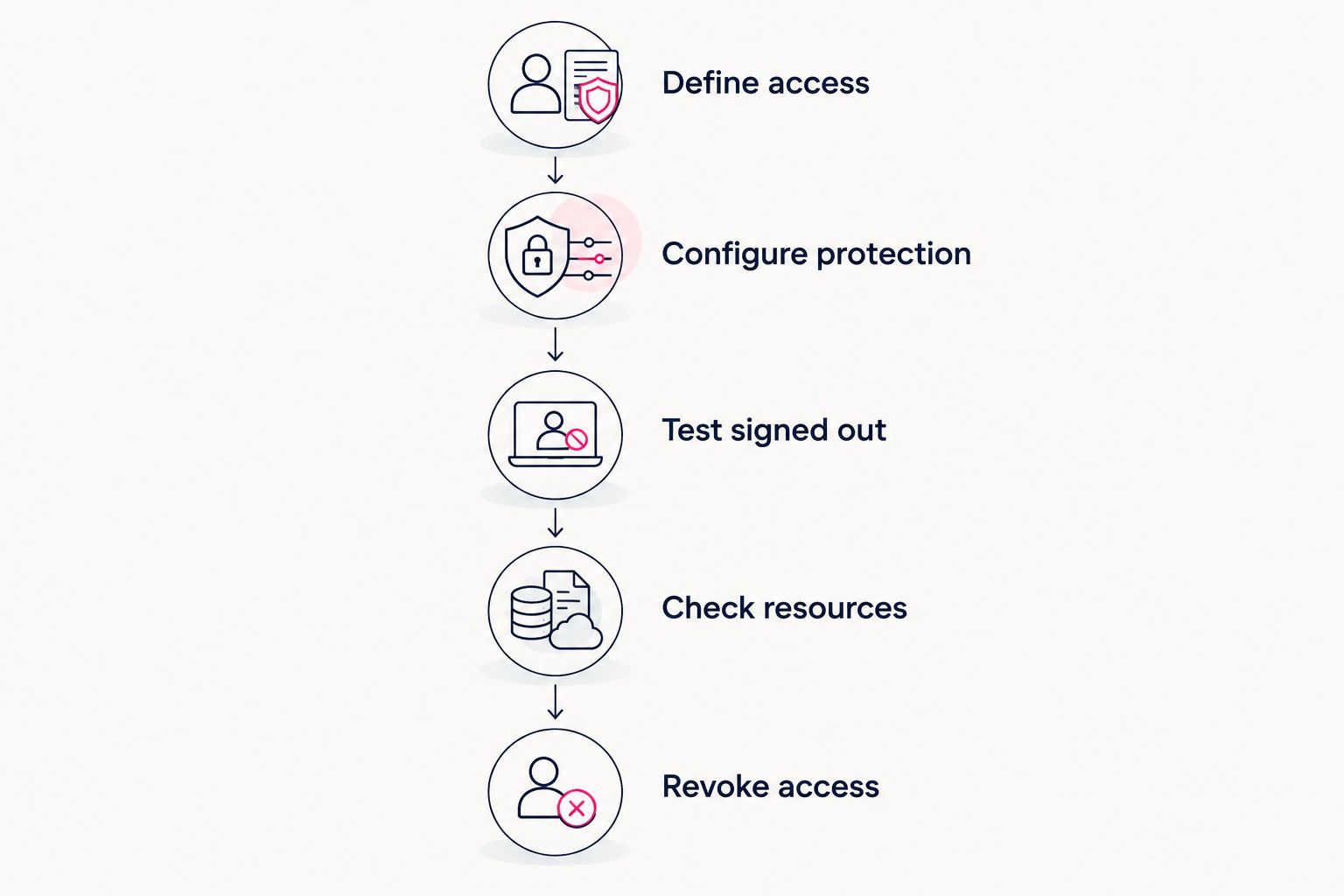
Check the page, its resources and the result of removing permission.
Add this check to your 2026 launch routine whenever you change the access setup. A working sign-in screen is only part of the test; the important result is whether an unauthorized visitor can retrieve the restricted material.
Choosing the right fit
AkaMe is best for creators who want a branded website linking to subscriptions, products or services hosted elsewhere. Its purpose is to give those destinations a recognizable home on your own unique domain.
Registration and publishing are handled for you. You can personalize the website, get photo selection assistance and preview it before checkout; photo assistance supports your choices rather than replacing them.
That workflow suits creators who want a link-in-bio website builder without taking on the entire website-building process themselves. If your central requirement is a private content library, choose and verify the access system for that library separately.
Carrd suits creators who prefer direct control over website building and domain configuration. If you are comparing Linktree or Linkme as well, use the same access tests for every candidate rather than assuming similar-looking pages have identical privacy features.
For a 2026 shortlist, separate your requirements into public presentation and restricted access. You can then compare each tool against the job you actually need it to perform.
Does a custom domain make a creator website private?
A custom domain gives your creator website its own address; it does not control who can enter. Privacy depends on access checks applied to the page or resource, not the name in the browser’s address bar.
Choose a domain for recognition and branding. Choose access controls for restricted viewing, and test them independently.
Is hiding a page from navigation enough?
Hiding a page from navigation does not password protect it. Someone with the direct URL can still request the page unless a separate access control blocks that request.
The same distinction applies to search visibility. Asking search engines not to index a page is not a substitute for checking whether a visitor is authorized to open it.
Should your public creator homepage require a password?
Keep your public creator homepage open when its job is discovery and routing. Put restrictions around the specific material that needs them instead of making every visitor request access to your introduction.
Use a whole-site lock when the website itself is intended for a private audience, such as an unpublished draft. Match the boundary to the purpose.
FAQ
Can you password protect pages on a creator website without coding?
Yes, if your website builder provides built-in page protection. Check that the setting protects the page itself and verify linked resources separately.
Is a password-protected page the same as a members-only page?
No. A shared page password gives everyone the same credential, while individual member accounts can associate permissions with separate users.
Can someone share my password-protected page with another person?
Someone can forward both the page address and its shared password. Use individual access permissions when you need to manage entry person by person.
Does HTTPS make my creator website private?
HTTPS encrypts data in transit between the browser and website; it does not decide who is allowed to view a page. Restricted content still needs an access-control system.
Will a page password protect downloadable files too?
A page password does not automatically protect downloadable files. Open each file’s direct address while signed out to check whether separate authorization is required.
Do I need to move my subscription content onto my creator website?
No. Your public creator website can link to an existing subscription destination, with access managed where that content lives.
One last thing
The most useful privacy test starts with a direct link, not a menu. Open the exact restricted resource while signed out, then check it again after removing permission. That reveals more than simply seeing a password field.
For your 2026 creator website, keep the public journey clear and put access checks where they belong. Preview an AkaMe creator website, personalize it and explore a domain that fits your name.
Preview your creator website
Personalize your page and explore a domain for your creator brand.