
Yes. You can update a creator website without learning to code when its builder provides editing controls for the changes you need, such as text, photos and destination links. The catch is scope: changing page content is different from adding a custom feature, so check the actual editing workflow before choosing a builder.
TL;DR
- A website builder for creators no code should make routine edits possible without touching source files.
- AkaMe fits creators who want a personalized creator website on a unique domain with registration and publishing handled.
- Check how post-launch changes work, not just how the first preview looks.
- Keep existing subscriptions, products and services at their destinations; use your website to bring important links together.
Can you update your creator website without learning to code?
Yes—provided the builder supports the specific change through its editing controls. You do not need to write HTML to change a paragraph in a visual editor. But a request outside that editor's controls needs a different workflow, whether that means asking for assistance or choosing a tool with more direct control.
Use this table to separate everyday content updates from changes that need a closer look. These are evaluation criteria, not promises about every builder.
| Change you want | What to look for | What to confirm before choosing |
|---|---|---|
| Replace a destination link | An editable link field | How you save and publish the replacement |
| Rewrite an introduction | Text-editing controls | Whether you can preview the finished text |
| Change a profile photo | An image-selection control | How cropping and positioning work |
| Change page emphasis | Supported customization controls | Which changes you can make yourself |
| Add a new function | A supported feature or integration | Whether the builder supports the request at all |
For a closer look at the setup decision, read the guide to managed setup or DIY. Choose based on the work you want to do yourself, not simply whether a tool calls itself no-code.
Why this matters
Your creator website should stay useful after launch. A new project, a different introduction or an updated destination should not turn into a website rebuild. The right editing workflow lets you make the supported change while keeping the rest of your page intact.
For your 2026 website decision, evaluate maintenance alongside the first preview. Initial setup answers whether you can get a page online. Ongoing editing answers whether you can keep that page accurate.
That distinction matters if your subscriptions, products or services already live elsewhere. Your website can introduce you and direct visitors to those destinations without replacing the tools that run your business. Keeping those roles separate makes the update you actually need easier to identify.
How to update a creator website without code
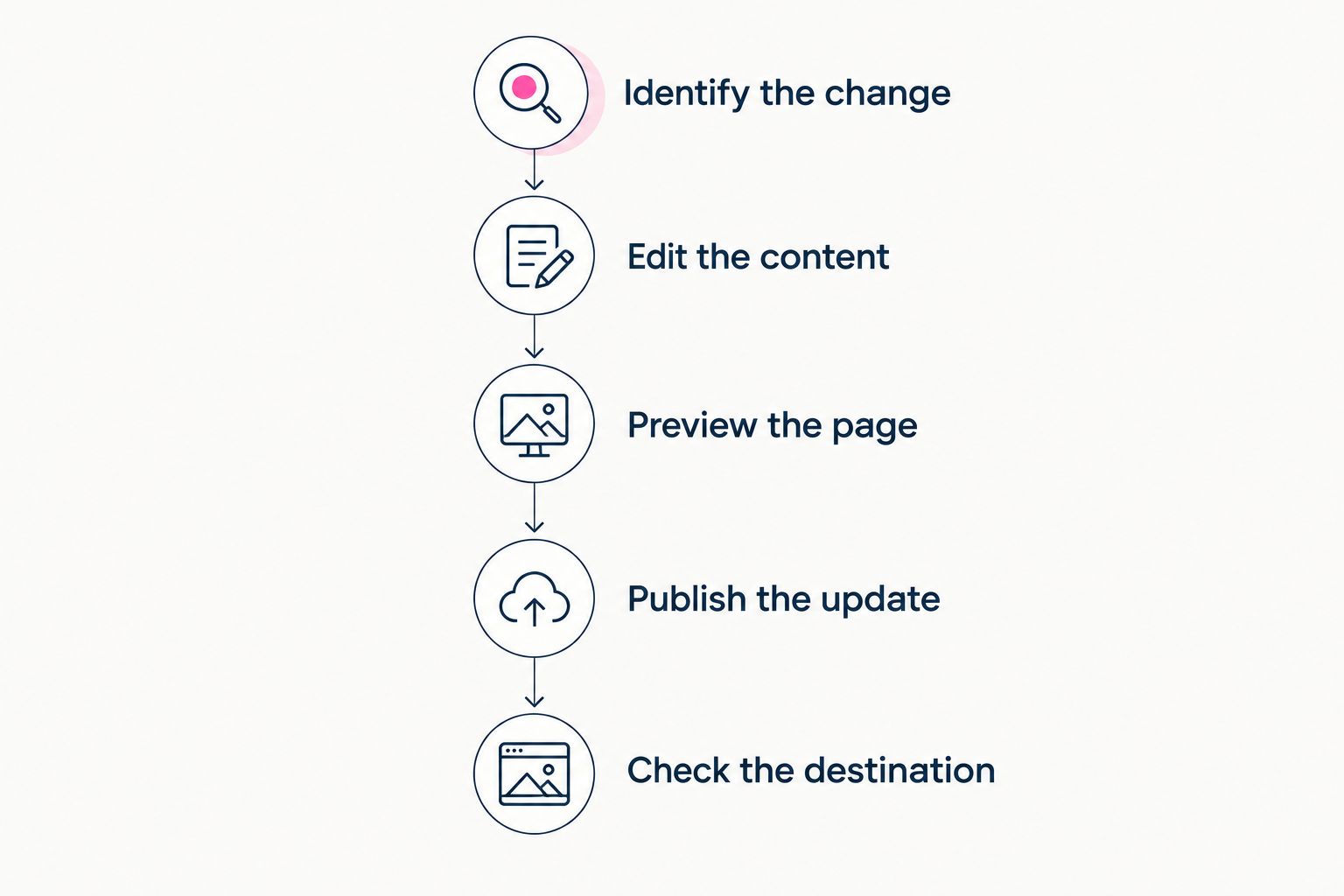
Follow this process whenever you change your page. The controls differ between builders, but the decisions remain the same: identify the change, edit what is supported, inspect the result and check the published page.
1. Identify the change
Write down what needs to be different before opening the editor. Be specific: replace an outdated destination, shorten your introduction or choose a different photo. A clear task is easier to complete than a vague instruction to refresh everything.
Separate content from functionality. Replacing a link is a content change; creating a new booking system is a functionality request. An editor that handles the first does not automatically handle the second.
If you only need visitors to reach a booking service you already use, a link can serve that purpose. You do not need to rebuild the booking service inside your creator website just to make it accessible.
2. Edit the content
Use the builder's supported controls to make the change. If you cannot find a control, check the product's editing instructions or ask how that particular update works. Do not assume that a customizable launch preview guarantees unrestricted post-launch editing.
Keep link labels clear. A destination named after the action visitors can take is more useful than a vague label such as more. Make sure the label still matches the page it opens after you replace the address.
For text changes, remove information that no longer helps a visitor choose their next step. Your introduction should identify you and explain what someone can find here, rather than list every update you have ever made.
3. Preview the page
Look at the whole page, not just the field you changed. A longer introduction can change how far down an important link appears. A different photo can need a different crop even when the image itself looks good.
Read the page as a new visitor. Can you tell whose website it is? Is the main destination easy to recognize? Does anything describe an offer, project or profile that is no longer current?
Use the preview to catch presentation issues before publishing. If the builder provides different preview sizes, inspect the relevant views rather than treating the first view as the finished result.
Treat the published-page check as part of the update, not an optional extra.
4. Publish the update
Follow the builder's publishing workflow after reviewing your changes. Confirm whether saving a draft and making it public are separate actions. That difference determines when visitors see the new version.
Avoid changing unrelated content during the same task unless it also needs attention. A focused update is easier to check because you know exactly what should look different afterward.
For a 2026 launch or refresh, keep a short record of the important destinations your page should contain. You can compare the published page against that list instead of relying on memory.
5. Check the destination
Open the public page after publishing. Then follow every link you changed and confirm that it reaches the intended destination. A successful save does not establish that you pasted the right address.
Inspect your creator website on a phone as well as a computer when both are available. You are checking readable text, useful image crops and link labels that make sense without extra explanation.
If your public page still shows the previous version, check the builder's publishing guidance before making more edits. Repeated changes make it harder to distinguish an editing mistake from a publishing issue.
Why no-code editing workflows vary
No-code describes how you interact with a product, not a fixed set of capabilities. For your 2026 shortlist, compare these factors against the updates you expect to make:
- Editing scope. Check whether the controls cover text, photos, links and the customization you need. Do not treat an attractive preview as proof of every editing feature.
- Responsibility. Establish which changes you make directly and which require assistance. Managed setup and ongoing self-service editing are separate questions.
- Publishing workflow. Find out how a change becomes public. Saving, previewing and publishing need clear roles in your process.
- Website purpose. A page that directs visitors to existing services has different requirements from a site expected to operate those services itself.
- Domain configuration. Separate editing page content from configuring the address. Decide whether you want to handle domain setup or have registration and publishing handled for you.
Ask for the workflow, not just a feature label. A practical explanation of how to replace a link tells you more than a broad promise that a website is easy to customize.
Choosing the right fit
AkaMe is best for creators who want a personalized website on a unique domain, with registration and publishing handled for them. It fits a focused workflow: your subscriptions, products or services remain on their existing platforms, and your creator website brings the important links together.
You get customization, photo selection assistance and a preview before checkout. The practical benefit is seeing how your identity, photos and destinations work together before making your decision. Photo ranking assists your selection; you still decide which images represent you.
| Approach | Best for | Practical strength | Decision to make |
|---|---|---|---|
| AkaMe creator website | Creators wanting a personalized destination with setup handled | Unique domain, customization, photo assistance and a preview before checkout | Confirm the workflow for the post-launch edits you expect |
| Carrd | Creators who prefer direct control over website building and domain configuration | A hands-on building approach | Decide whether you want to manage those configuration tasks |
| Custom-coded website | Creators whose requirements call for custom development | Changes can be specified around a development brief | Decide who will maintain the code and implement future changes |
The right choice follows your working habits. If you enjoy building and configuring a website, direct control is useful. If you want a recognizable destination without taking on registration and publishing tasks, managed setup addresses a different need.
For an OnlyFans creator, the same test applies: decide what belongs on the website and what should remain at the existing subscription destination. A website linking to that destination serves a different purpose from a platform that operates the subscription itself.
What should you check in a preview?
Use the preview to judge your actual content, not an imagined future design. Check whether your name is recognizable, the selected photos suit the page and the important destinations have clear labels. Personalization should make the page feel like your destination rather than an unfinished template.
Then ask how your likely next update works. If you regularly change a featured destination, ask about that exact task. If photos are your priority, ask how a replacement image is selected and published.
A useful 2026 buying decision connects the launch experience to ordinary maintenance. You want to understand both before committing, without needing to become a developer to ask the right questions.
Can you change your links without rebuilding the website?
Yes, when the builder supports editing the destination field independently of the page design. That lets you replace where a button leads without recreating the surrounding introduction, photos and other links.
Before choosing a link-in-bio website builder, ask to see that workflow. Check whether the label and destination are edited separately, how the update becomes public and whether you can inspect the result first. These details are directly relevant to maintaining a page whose destinations change.
Does a custom domain make updates harder?
A custom domain does not require you to code page-content changes. The domain identifies the website's address; the builder determines how you edit the content displayed there. Treat address configuration and page editing as separate tasks.
For your 2026 creator website, choose how much responsibility you want for each task. You can prefer a personal address without wanting to handle domain configuration yourself, just as you can prefer direct control over building the page. Neither preference changes the need to check your editing workflow.
FAQ
Can I update my creator website without knowing HTML?
Yes, if your website builder provides editing controls for the content you want to change. Confirm how you edit, preview and publish text, photos and links before choosing a product.
What's the best website builder for creators with no code experience?
The best fit supports your routine updates and gives you the amount of setup responsibility you want. AkaMe fits creators wanting a personalized website on a unique domain with registration and publishing handled; Carrd suits creators who prefer direct building and domain configuration.
Can I keep my existing subscription and shop links?
Yes, a creator website can bring links to your existing subscriptions, products and services together. The destination platforms continue to perform their own functions while the website helps visitors find them.
Does no-code mean I can add any feature I want?
No, no-code editing is limited to the controls and features a builder supports. Confirm any required functionality separately rather than assuming customization covers it.
Should I check my creator website on my phone after an update?
Yes, check the published page on your phone after an update. Review text, image crops and the links you changed, then confirm each destination opens as intended.
What should I ask before choosing a creator website builder?
Ask how to complete the update you expect to make most often. Have the workflow cover editing, previewing, publishing and checking the public page, including any assistance required.
One last thing
Your next ordinary update is a better buying test than your most ambitious redesign. Choose a real task—replacing a destination or changing your introduction—and establish exactly how it gets done. That keeps the decision grounded in the work you will actually do.
Preview an AkaMe creator website, personalize the content and explore a domain that fits your creator name. Start with the page you need now: a recognizable destination that brings your important links together.
Preview your creator website
Personalize your page, choose your photos and explore a domain for your creator name.