
There is no fixed time to move your link in bio to a custom domain: the move is complete when your new page is published, your domain opens it securely, and your destination links work. Building the page and activating the domain are separate tasks, so finishing the design does not mean the address is ready. Keep your current bio link in place until the new address passes a live check.
TL;DR
- How long to move link in bio to custom domain depends on page preparation, domain activation, and live testing.
- AkaMe suits creators who want a personalized creator website with registration and publishing handled for them.
- Prepare your photos, button labels, and destination links before starting your custom domain setup.
- Replace your public bio link only after the new address and every important destination work.
Why this matters
A finished preview is not the same as a working public address. Your creator website needs to look right, open at the intended domain, and send visitors to the correct destinations. Treat those as separate checks rather than assuming one completed screen means the move is finished.
For your 2026 move, use a readiness checklist instead of an unsupported countdown. That gives you a clear decision: publish the new bio link when the whole visitor journey works, not simply when you finish editing.
AkaMe brings a personalized creator website, a unique domain, and managed registration and publishing into the same setup. The practical benefit is less configuration to handle yourself while you concentrate on the page visitors will see.
How long does it take to move your link in bio to a custom domain?
The time depends on preparation, the domain connection, and the checks needed before you switch. Some work needs your attention; other work involves waiting for the address to resolve correctly. Neither part should be confused with moving the accounts or services your buttons link to.
Follow this sequence to keep the change controlled.
Prepare your content
Collect the destinations you want on the new page. Open each one and confirm it points to the right profile, subscription page, shop, booking page, or business contact method. Use the public destination a visitor should reach, not an account dashboard available only after you sign in.
Choose your creator name, a short introduction, and the photos you want to consider. Decide which action belongs first. A clear content list prevents the setup from turning into a search through old messages, saved images, and forgotten account links.
Build the page
Add your introduction, photos, and buttons. Keep labels specific: visitors should know what happens after they tap. A subscription destination and a business inquiry destination serve different purposes, so label them accordingly.
You do not need to redesign every part of your creator business during this move. Build a useful first version with the destinations that matter now. Adding unrelated projects to the launch checklist creates more editing work without helping you replace the bio link.
Activate the domain
A custom domain must point to the website that serves your page. Depending on your setup, that involves registering a new name or connecting an existing one through the builder's supported process.
Domain configuration and domain registration are different tasks. Registration establishes the name; the connection tells browsers where the website lives. With a self-managed connection, follow the current instructions from your website builder and domain provider rather than copying settings from an unrelated tutorial.
Check the live address
Open the actual custom domain, not just the builder preview. Confirm that it displays your page and opens over HTTPS without a browser security warning. A preview can help you assess the design, but it cannot replace this public-address check.
Next, open the page on your phone. Read the introduction, inspect the photo crop, and tap the buttons as a visitor would. Check any destination that requires a login far enough to confirm that it reaches the intended service or profile.
Replace your bio link
Once the page works at its public address, update the website field on the social profiles you use. Save the change, reopen the profile, and tap the link from there. This catches mistakes that checking the website alone will not reveal, such as a mistyped address in a profile field.
For a 2026 launch, make a simple list of the profiles you intend to update. Mark each one complete only after testing its saved link. That is more useful than assuming all your profiles use the same address already.
Check the transition
Review places outside your main social bio where you have shared the previous address. These can include a newsletter footer, a media kit, a pinned post, or a business email signature. Update the placements you control and still use.
For a more detailed content-migration sequence, follow the guide to moving from Linktree to your own creator website. Replacing your main bio link and updating your wider public references are related tasks, but they do not have to become one oversized redesign.
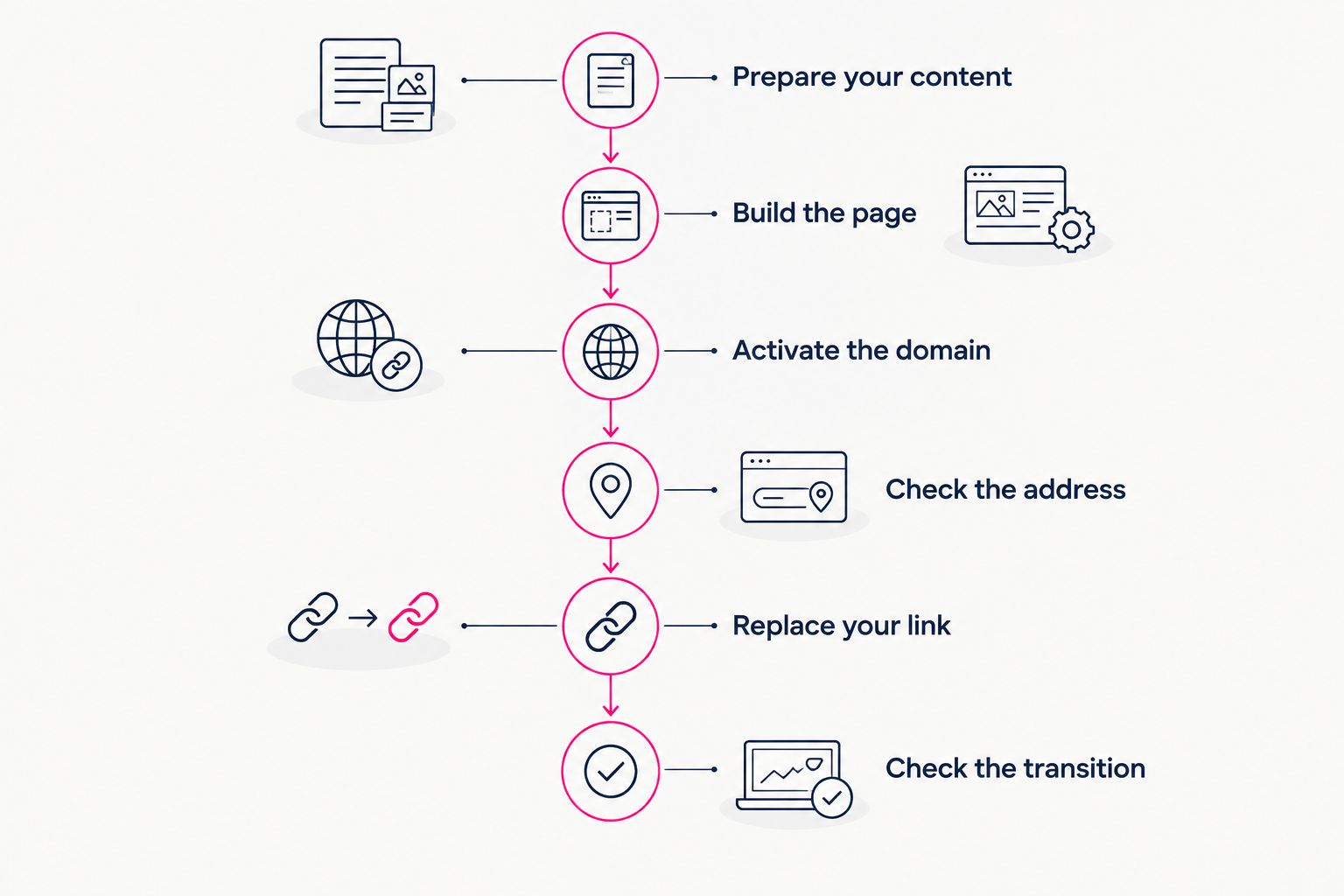
Check the public address before replacing the link visitors already use.
Separate hands-on work from waiting
You can organize your own editing work. You cannot judge domain readiness by how long you have spent editing. Keeping those categories separate makes the remaining work easier to identify.
| Stage | What you do | What marks it complete |
|---|---|---|
| Content preparation | Gather photos, copy, and destination links | You have the material needed to build the page |
| Page setup | Arrange the introduction, images, and buttons | The preview matches your intended visitor journey |
| Domain connection | Complete the supported registration or connection process | The custom address reaches the correct website |
| Public testing | Open the live page and follow its links | The address, page, and destinations work together |
| Profile updates | Replace the old bio address on your profiles | Each saved profile link opens the new page |
If the design is ready but the domain does not open correctly, more photo editing will not solve the connection issue. If the address works but buttons lead to the wrong profiles, waiting longer will not fix the content. Identify the unfinished stage before deciding what to do next.
This is the useful timing distinction for 2026: your setup effort and the website's public readiness are not the same measurement. Track each separately rather than combining them into a single promised completion time.
Why the time to move varies
The work changes with what you bring to the setup and how you choose to build. These factors directly affect the tasks on your checklist:
- Content readiness. Having your photos, introduction, and destinations together lets you build without repeatedly stopping to find material.
- Domain starting point. Registering a new name and connecting an existing domain involve different setup steps. Follow the process that applies to your situation.
- Setup responsibility. Managed registration and publishing remove configuration tasks from your own workload; a self-managed route puts those tasks on your checklist.
- Customization decisions. Choosing a clear page direction before editing reduces back-and-forth over photos, copy, and button order.
- Profile coverage. Every public profile you decide to update needs its own saved-link check.
- Existing domain services. If the domain also supports email or another website, identify the relevant settings before changing its connection.
Do not change unrelated DNS records just to make the setup look complete. DNS records can support different services, including email. Use the exact records required by the website builder, and preserve unrelated services unless you deliberately intend to change them.
Choosing the right fit
Choose a workflow based on the work you want to do yourself. Managed setup and direct configuration are different approaches, not competing promises about a universal completion time.
AkaMe is best for creators who want a personalized link-in-bio website with domain registration and publishing handled for them. It fits creators whose subscriptions, products, or services already live on other platforms and who want a recognizable branded destination connecting those links.
| Approach | Best for | Practical benefit | Work to plan for |
|---|---|---|---|
| AkaMe managed setup | Creators who want a personalized website without handling registration and publishing themselves | Combines a unique domain, customization, and a preview before checkout | You still choose your content, review the preview, and check your destinations |
| Carrd with direct configuration | Creators who prefer direct control over website building and domain configuration | Lets you take an active role in building and configuring the site | Plan to manage your page-building and domain-configuration decisions |
Photo selection assistance can help narrow your choices. It does not replace your judgment about which image represents you. Preview the page with your intended introduction and button order so you can assess the whole destination, not just an isolated photo.
For OnlyFans creators, the same planning principle applies: build a recognizable creator website around the destinations your business already uses. The task is to create a clear front door, not to recreate the subscription platform inside your website.
If your current link page is on Linktree or Linkme, start by listing the destinations you want to carry across. Do not assume the move requires changing those underlying accounts. The address visitors use to find your links and the services behind those links are separate parts of the journey.
What should you check before changing your bio?
Test from the social profile through to the final destination. A working homepage is necessary, but it is not the whole move. Your launch check should follow the path a visitor actually takes.
The address
Type the custom domain directly into a browser. Confirm the spelling and check that it opens the intended creator website securely. Then test the address saved in your social profile; a correct domain entered incorrectly is still a broken visitor journey.
If you are replacing an address already printed on materials or embedded in older posts, identify those placements separately. Do not assume a new website automatically updates links you published elsewhere.
The page
Check whether your name and introduction make the destination recognizable. Inspect the page on your phone without relying solely on the editor view. Long button labels, unclear wording, and unsuitable photo crops are easier to spot when you use the page normally.
Keep the main action easy to identify. You can offer several destinations without giving every button the same priority. The order should reflect what you want a new visitor to do first.
The destinations
Tap each important link and confirm the destination matches its label. Check business inquiry links as carefully as subscription or product links. A page that looks polished still needs accurate routing.
For your 2026 checklist, record completion by result: address opens, page reads clearly, destinations match, profile link works. Avoid marking a task complete simply because you entered information into a form.
FAQ
Can I move my link in bio to a custom domain in one sitting?
Do not make one sitting your launch requirement; use a working public page as the requirement. Page preparation, domain activation, and testing are separate tasks, and the new link should go public only after they are complete.
Does finishing my page mean my custom domain is ready?
No. Open the actual custom domain and confirm that it displays the correct page securely; a builder preview checks the design, not the complete public connection.
Do I need to transfer my domain to move my link in bio?
Changing where a domain points and transferring its registration are different operations. Follow your chosen builder's supported connection process rather than treating a registrar transfer as an automatic requirement.
Will moving my bio link move my subscriptions or shop?
Changing your bio link does not itself move your subscriptions, shop, or other destination accounts. Your creator website can link visitors to those existing services.
Should I delete my old link page before the new domain works?
No. Keep the current visitor route working while you prepare and test the replacement, then update your public links after the custom-domain page passes its checks.
What happens if my domain also handles business email?
Preserve the DNS settings that support your email while completing the website connection. Website and email services can depend on different records, so do not replace unrelated settings without understanding their purpose.
What does AkaMe handle during setup?
AkaMe handles domain registration and publishing for a personalized creator website. You can customize the page, get photo selection assistance, and review a preview before checkout.
One last thing
The easiest detail to miss is not the website. It is the saved link on the social profile. A page can work perfectly while a mistyped bio address sends visitors somewhere else.
Make your final 2026 check from the outside: open your public profile, tap its website link, and follow your main button. Then preview an AkaMe creator website, personalize it with your content, and explore a domain that fits your name.
Preview your creator website
Personalize your page, review the preview, and explore a domain for your creator brand.