
Check your content creator website on mobile by opening the published address on a real phone, following the link from your social bio, and testing every important action. Check readability, image cropping, button spacing and destination pages—not just whether the homepage looks good in a preview.
TL;DR
- Your content creator website mobile check should cover the full journey, from social bio to destination.
- AkaMe fits creators who want a personalized creator website with domain registration and publishing handled for them.
- Use a real phone alongside desktop previews; each reveals different problems.
- Fix broken destinations and unreadable content before adjusting decorative details.
How do you check your content creator website on mobile?
Open your website from the same place your audience will find it. For a creator promoting through Instagram or TikTok, that means tapping the actual profile link—not starting from an editor already open on your laptop.
Follow this sequence for your 2026 mobile check:
- Open your bio. Confirm the profile link reaches the intended website.
- Check the opening. Read your name, description and main action before scrolling.
- Test every destination. Tap each button and inspect the page it opens.
- Check readability. Review text, images, zoom and touch controls.
- Retest changes. Repeat the original journey after editing or publishing.
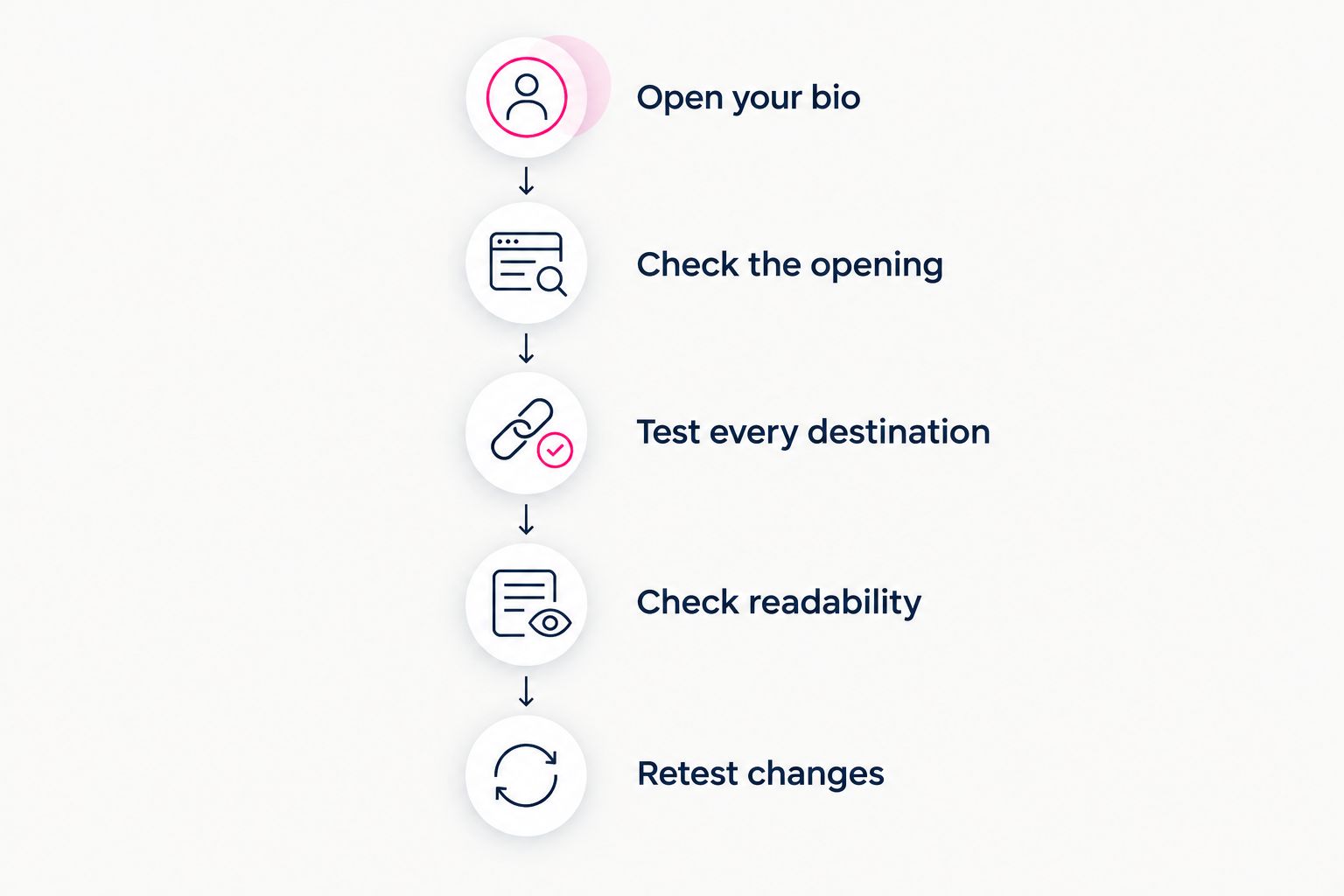
Check the whole journey, not just the page inside your editor.
If you are still building, AkaMe brings your important links together on a personalized creator website with a unique domain. Previewing helps you judge the presentation before checkout; checking the published website confirms how the actual visitor journey works.
Why this matters
Your website sits between someone's interest and their next action. A button that opens the wrong profile interrupts that journey, even when the page itself looks polished.
A mobile check also separates appearance from function. A portrait can look right while covering essential text; a clear button can still lead to an outdated destination. Treat both as launch issues.
For your 2026 launch, start with the action you most want visitors to take. Make that journey easy to understand, then check supporting links such as business inquiries, subscriptions or products.
Which mobile testing method should you use?
Use a real phone for the final check and a desktop preview for layout troubleshooting. Neither replaces the other. The editor shows your intended design; the live journey shows what visitors actually encounter.
| Method | Best for | What it helps you check | Limitation |
|---|---|---|---|
| Real phone browser | Everyday visitor testing | Touch controls, scrolling, text and destination pages | Shows only the device and browser you test |
| Social app browser | Checking traffic from your bio | The transition from profile to website to destination | Behavior can differ between apps |
| Desktop responsive preview | Comparing narrow layouts | Wrapping, stacking and horizontal overflow | Does not reproduce every real-phone interaction |
| Builder preview | Reviewing edits before publication | Photo choice, wording and link order | Does not confirm that the published journey works |
You do not need to turn this into a device-testing project. Start with the phone you have, then check another available device or ask someone else to follow the same journey. Record the device and browser when you find a problem so you can reproduce it.
Open your bio: test the actual entry point
Go to your public social profile and tap its website link. Confirm that you reach the intended address and that the page belongs to the right creator identity.
Check spelling carefully. Similar-looking names, an old profile handle or a copied link to an editing screen can send visitors somewhere you did not intend.
If you use a custom domain, check the address after the page finishes loading. Your test should establish where the public link actually takes people, rather than assuming that a domain entered during setup is the same address now shown in your bio.
Also open the website directly in your phone's regular browser. This gives you a useful comparison if a problem appears only inside a social app. Keep the distinction clear: a working direct visit does not confirm that your profile link is correct.
Check the opening: can visitors understand the page?
Look at the first screen before you scroll. Your name or creator identity, a useful description and the main action should make sense together.
Ask yourself:
- Can a new visitor tell whose website this is?
- Does the description explain what they will find?
- Is the most important link easy to identify?
- Does a large image push essential information out of view?
- Do button labels describe their destinations?
Use labels that tell people what happens next. A business contact link should read like a business contact link. A subscription destination should not hide behind wording that could mean several different things.
For an OnlyFans creator, the website can bring a subscription link and professional contact information together without making them compete for the same purpose. Keep the public page focused on helping visitors choose the right destination.
Do not force every link into the opening screen. Prioritize the main action and let secondary links follow in a clear order. A readable page is more useful than a crowded collection of buttons.
Test every destination: follow through after the tap
Tap each public link, including social profiles and contact actions. Read the destination address and confirm that the correct account, page or contact method opens.
A successful page load is not enough. A link can work technically while opening an old shop, a general homepage instead of a specific destination, or a profile with an outdated handle.
Check the next step too. If a destination requires a login, confirm that visitors reach the intended public entry point rather than a private account screen. Do not assume your own signed-in experience represents a new visitor's experience.
For contact links, check which application opens and whether the recipient details are correct. For links that leave your creator website, check whether returning to the page is straightforward.
You can test the handoff to another service without completing a purchase or subscription. The task is to verify the intended route, not to perform a transaction during every website review.
Check readability: text, touch and images
Read the page while holding your phone normally. If you need to lean closer, zoom immediately or repeatedly adjust your grip to use a button, inspect the layout rather than dismissing the problem.
Can visitors enlarge the text?
Test text enlargement and check whether labels remain readable without disappearing beneath other elements. Browser zoom and phone accessibility settings can reveal clipping that a default preview misses.
The W3C's Web Content Accessibility Guidelines, WCAG 2.2, specify text resizing up to 200% without loss of content or functionality, subject to the criterion's stated exceptions. Use that as a practical check, not as a claim that a quick phone review establishes full accessibility compliance.
Are the touch targets easy to distinguish?
Tap the intended control without aiming with unusual care. Nearby buttons should not feel interchangeable under your thumb.
WCAG 2.2's minimum target-size criterion uses 24 by 24 CSS pixels, with specified spacing alternatives and exceptions. Its enhanced target-size criterion uses 44 by 44 CSS pixels, also with exceptions. These are CSS measurements, not a promise that every visible button must have an identical physical size on every phone.
For a practical review, pay particular attention to small social icons, tightly packed footer links and buttons placed close together. Fix accidental taps before changing decorative styling.
Does the layout stay within the screen?
Scroll down the page and look for sideways movement, cut-off text or elements extending beyond the visible area. Long words, addresses and button labels deserve attention because they can expose wrapping problems.
WCAG's reflow criterion uses a width equivalent to 320 CSS pixels for vertically scrolling content, with exceptions for content requiring a two-dimensional layout. A narrow creator page should not require visitors to drag sideways to read ordinary text or reach its main links.
Do photos still communicate clearly?
Check the actual mobile crop, not just the original image. Your face or other important subject should remain visible, and text placed near the image should stay readable.
Photo selection assistance can help you compare choices, but your judgment still matters. Pick the image that represents you clearly in the space it will occupy—not simply the image that looks strongest at full size.
What should you fix first?
Use consequences, not visual annoyance, to set the order. A wrong destination matters more than a minor spacing inconsistency.
| Priority | Example problem | Next move |
|---|---|---|
| Essential function | Main link opens the wrong destination | Correct the link and test it again |
| Access and readability | Text is clipped or controls overlap | Adjust the layout, wording or spacing |
| Clear direction | Several buttons look equally important | Put the primary action first and clarify labels |
| Presentation | Photo crop feels awkward | Reposition or replace the image, then review |
Keep a short issue list with the affected element, what happened and what should happen instead. For example, describe which button opens the wrong account rather than writing that the links are broken.
For your 2026 review, capture a screenshot when the problem is visual. Include the browser and device in your notes. That makes the next check more precise and prevents repeated edits based on memory.
Choosing the right fit
AkaMe is best for creators who want a personalized creator website with domain registration and publishing handled for them. It fits creators whose subscriptions, products or services already live elsewhere and who want a branded destination linking to them.
The practical benefit is a simpler setup: choose and customize your presentation, get assistance with photo selection, and preview the website before checkout. Your decisions still shape the result. Review the wording, selected photos and link order rather than treating assistance as a replacement for your choices.
Use your preferred link-in-bio website builder according to the work you want it to do. Decide whether you want a focused destination that brings existing links together or a broader website-building project requiring more direct configuration.
Whatever route you choose in 2026, apply the same mobile checks. A custom domain makes the address personal; checking the published page confirms that visitors can use what is behind it.
Retest changes before calling the page finished
After editing, reopen the public website and repeat the original route from your social bio. Do not stop at the editor's saved state.
Check the changed element and the content around it. Shortening a button label can alter its wrapping; replacing a photo can change the balance of the opening screen. Confirm the overall page still reads clearly.
Then use the content creator website checklist before you launch to review the wider launch tasks. Keep mobile testing as a repeatable habit whenever you change a destination, update your public identity or reorganize important links.
FAQ
How do I check my creator website on my phone?
Open your public social profile, tap its website link and follow every important destination. Check text, photos, buttons and scrolling on the published page, not only in the editor.
Is a mobile preview enough before I publish?
A mobile preview is useful, but it does not replace testing the published website on a real phone. Check the actual bio link and the pages your buttons open.
What should appear first on my mobile creator website?
Your creator identity, a useful description and a clear main action should lead the page. Put secondary destinations below them in an order that matches your priorities.
How big should mobile website buttons be?
WCAG 2.2's minimum target-size criterion uses 24 by 24 CSS pixels, with spacing alternatives and exceptions. Check the full criterion and test whether neighboring controls are easy to tap separately.
Can I keep my subscriptions and shop on other platforms?
Yes. AkaMe fits creators who want a personalized creator website that links to subscriptions, products or services already hosted elsewhere. Test each destination from the finished mobile page.
When should I repeat my mobile website check?
Repeat the check after changing links, images, important wording or layout. Start from your social profile again so you verify both the entry point and the updated page.
One last thing
Ask someone unfamiliar with your page to find your main destination without instructions. Watch where they hesitate. That small exercise checks something your own familiarity can hide: whether the page explains itself.
For your 2026 launch, preview an AkaMe creator website, personalize the presentation and explore a domain that fits your name. Then test the finished journey on your phone.
Preview your creator website
Personalize your page, review your presentation and explore a domain for your creator identity.