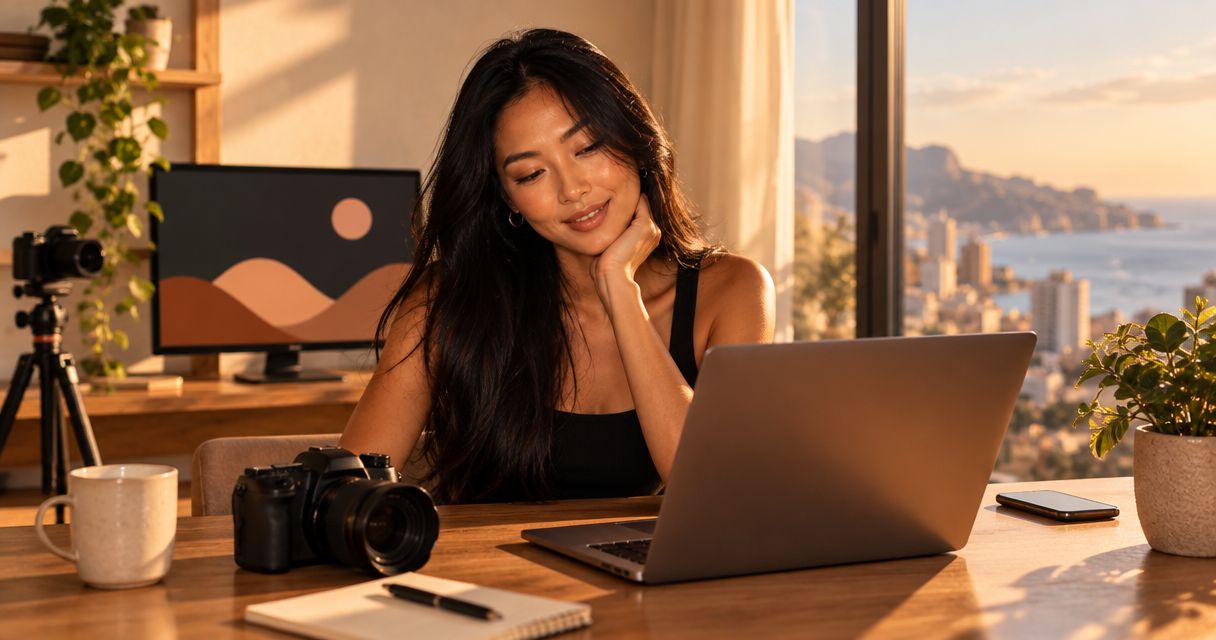
Choose content creator website photos that make you recognizable, fit the page’s crop and leave your main links easy to read. Start with a clear lead image, add supporting photos only when they serve a different purpose, and approve the selection inside the actual website preview—not just your camera roll.
TL;DR
- Choose content creator website photos for recognition, useful crops and readable links—not just standalone impact.
- AkaMe suits creators who want photo selection assistance for a personalized creator website on their own domain.
- Preview your custom domain page’s photos on mobile before approving the design.
- Keep the final photo choices yours; automated ranking is assistance, not a creative decision.
Why this matters
Your website photo has a different job from a social post. A post can make the image the entire experience; a creator website also needs to help visitors find subscriptions, products, services or business contact details.
Pick the photo that works with the page, not the photo that demands the whole page. For your 2026 website refresh, use recognition and readability as the deciding criteria. Keep the wider layout focused with this guide to designing a link-in-bio website around one main action.
How do you choose photos for your content creator website?
Use this sequence to move from a folder of possible images to a selection you can confidently publish. Judge each candidate in context before you commit.
- Define the visitor’s next step. Decide whether the page primarily directs people toward subscriptions, products, services or inquiries. Choose imagery that makes sense beside that action.
- Choose a recognizable lead image. Look for a clear subject, an intentional expression and a style that matches how you present yourself publicly.
- Test the crop. Put the image into its intended position. Reject crops that cut through important details or make the subject hard to identify.
- Check the links. Read every heading and button with the photo in place. Change the image or placement if visual detail competes with the words.
- Add supporting images selectively. Give each extra photo a distinct purpose, such as showing your work or adding context to your creator identity.
- Approve the preview. Review the whole page on your phone, follow its links and confirm that the published selection represents you accurately.
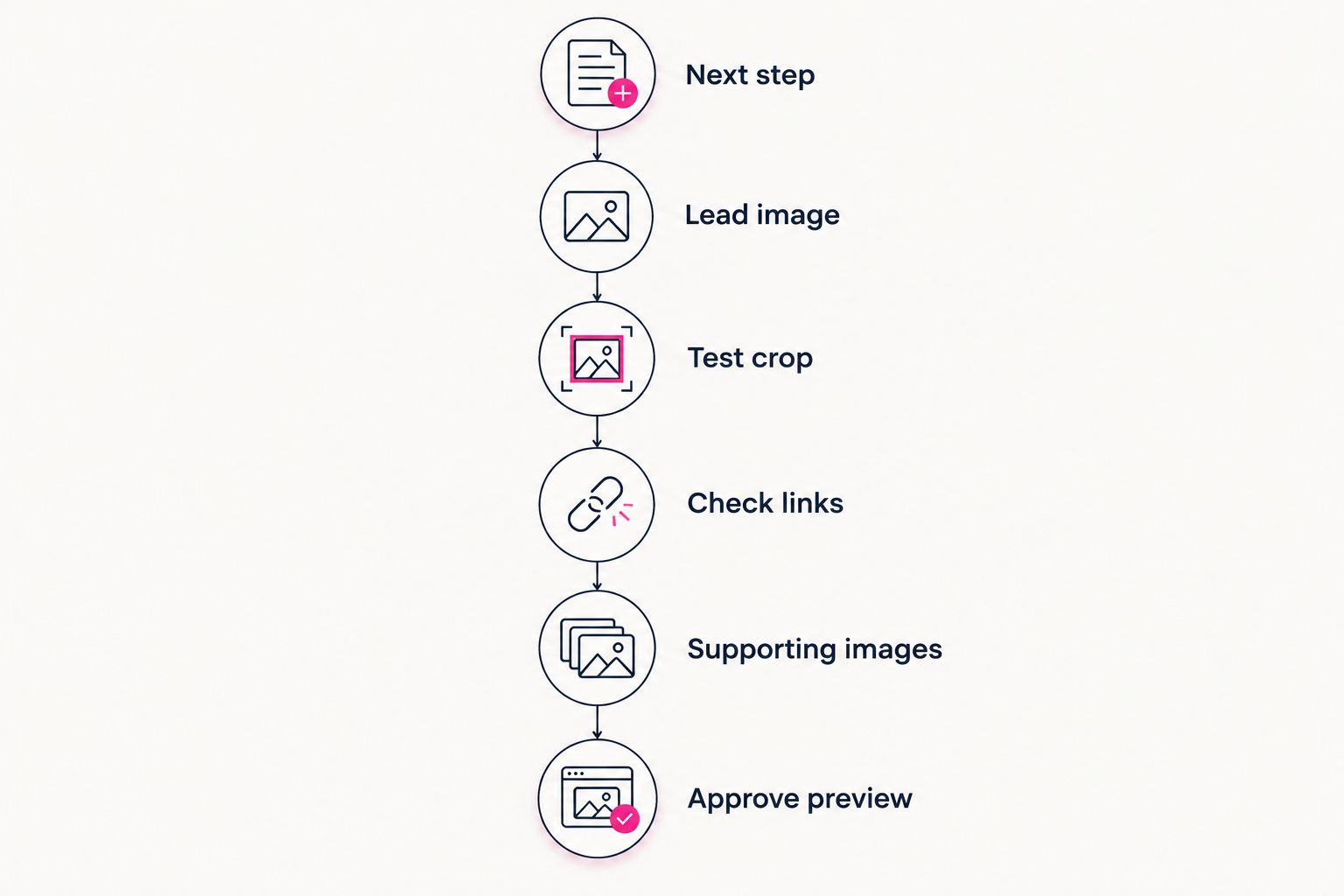
Choose photos in the page layout, not only in your camera roll.
Keep an untouched original of every selected image. Work from copies when cropping or editing so you can adjust the layout without losing the starting file.
Lead photos: choose recognition first
Your lead photo introduces the person or identity behind the links. Choose an image that still makes sense when displayed smaller than it appears in your gallery.
A close portrait is useful when your face is central to your public identity. A wider environmental shot works when the setting helps explain your work, but inspect the smaller crop carefully. The extra context is only useful if visitors can still identify the subject.
You do not need to show your face to make a deliberate choice. If your public identity uses a consistent non-face image, select a photo that respects that approach rather than introducing personal details you normally keep private.
For a 2026 refresh, compare the candidate with your current public profile image. They do not have to match exactly. They should feel like the same creator, rather than leaving visitors to work out whether they reached the right page.
Supporting photos: give each image a job
A supporting photo should explain something the lead image does not. It might show your creative process, demonstrate the kind of work you make or establish the setting associated with your content.
Use the comparison below to choose by purpose. These are photo roles, not a requirement to include every type.
| Photo type | Best for | Strength | Trade-off to check |
|---|---|---|---|
| Clear portrait | Creators whose face is part of their public identity | Makes the person behind the page visible | A tight crop can remove useful context |
| Environmental portrait | Creators whose setting helps explain their work | Connects the creator with an activity or place | Background detail can compete with links |
| Work sample | Creators directing visitors toward a portfolio or service | Shows what the creator makes | It does not necessarily identify the creator |
| Detail photo | Adding atmosphere without another portrait | Supports a consistent visual theme | It can feel disconnected without context |
Keep the image that adds information; remove the image that repeats it. Several near-identical portraits do not automatically make a stronger selection. Compare their roles before giving each one space.
A work sample also needs to match the destination beside it. If a photo suggests a particular kind of service, the linked page should explain that service rather than sending visitors somewhere unrelated.
Why the right photo choice varies
There is no single best photo style for every creator website. Choose according to these practical factors:
- Public identity. A face-led creator brand and a deliberately anonymous identity need different lead images.
- Visitor intent. A subscription destination, a portfolio and a business inquiry page ask the visitor to do different things.
- Image placement. A profile image, a wide header and a background each expose different parts of the same file.
- Text placement. Words over an image need a quieter area than words placed beside it.
- Creative context. Your setting, clothing and work samples should support the identity you want the page to communicate.
- Permission and privacy. Choose photos you can publish without exposing people, locations or material you intend to keep private.
Apply these factors to the actual page rather than treating them as a photography brief. A compelling image can still be the wrong fit for a particular position.
Check the crop before editing the photo
Start with placement. If the crop is wrong, extra retouching will not solve the underlying problem.
Check 3 areas: the subject’s face or identifying detail, the edges of the frame and the space around any text. Look for cut-off features, accidental objects at the edges and busy patterns behind important words. Reposition the photo before deciding to replace it.
Compare 2 views: the narrow phone layout and a wider desktop layout. Do not assume an image that works in one arrangement will work unchanged in the other. If the builder changes the crop between views, inspect both results.
For your 2026 preview, use the page at its normal viewing size. A photo can look excellent enlarged while losing its purpose inside a small profile frame. The smaller presentation is the one you need to approve.
Should you crop or choose another image?
Crop when the original contains enough room to reposition the subject without losing essential details. Choose another image when every workable crop creates a new problem.
Avoid forcing a wide group photo into a personal profile position. If the page represents you alone, choose an image that makes that identity clear without requiring an explanation.
Keep edits consistent and believable
Adjust brightness, color and cropping to help the photos belong together. Do not push every file through the same treatment if it makes skin tones, artwork or clothing look inaccurate.
Consistency does not mean every photo needs the same background. It means the selection feels intentional when viewed as a group. Similar color treatment and compatible lighting can help, but accurate representation comes first.
Check these details before exporting:
- Exposure: important features remain visible rather than disappearing into shadows or bright areas.
- Color: the edit preserves the appearance you intend to show.
- Sharpness: the subject looks clear in the final page position, without exaggerated edge effects.
- Overlays: old captions, watermarks or interface fragments do not obscure the image’s purpose.
Keep text in the website’s text fields instead of baking essential instructions into a photo. That makes the wording easier to revise without rebuilding the image.
Check permissions and private details
Use photos you took or have permission to publish. If a photographer created the image, check the agreed website usage rather than assuming that permission to post on social media covers every use.
Inspect backgrounds as carefully as faces. Addresses, documents, reflections and identifiable bystanders can appear in otherwise suitable photos. Remove sensitive details or choose a different frame before uploading.
OnlyFans creators can use a clear, non-explicit portrait or contextual image to introduce their public brand. The website photo does not need to reproduce subscription content to explain who the page belongs to. Choose imagery that fits the public destination and your own privacy boundaries.
Make this part of your 2026 photo review, not an afterthought once the page is ready. It is easier to replace a candidate before you build the design around it.
Choosing the right fit
AkaMe is best for creators who want a personalized creator website with photo selection assistance and handled domain setup. It fits creators whose subscriptions, products or services already live elsewhere and who want a branded destination linking to them.
AkaMe combines a unique domain, registration and publishing assistance, customization and a preview before checkout. The practical benefit is a simpler route from your content and links to a recognizable website, without treating photo selection as a separate design project.
Use photo ranking as a shortlist, not a final verdict. AkaMe’s AI photo ranking assists selection; your judgment decides whether a photo matches your identity, respects your boundaries and works beside the links.
If you enjoy choosing every layout detail yourself, a hands-on building workflow gives you more direct involvement. If you prefer assistance, prepare a clear shortlist and explain what each photo should communicate. Either way, judge the finished preview rather than the selection method.
How many photos should a creator website have?
Start with 1 lead photo, then add supporting images only when they explain something different. This is a selection starting point, not a platform limit or a required layout.
For a focused link-in-bio page, extra images should not make visitors search for the main destination. For a portfolio-led page, work samples can carry more of the explanation. Let the page’s purpose determine the selection.
Do you need professional photos for a creator website?
Professional photography is not a prerequisite for a useful creator website photo. A well-chosen image you already have can work when the subject is clear, the crop fits and you have permission to publish it.
Consider a new shoot when your existing images no longer represent your public identity or none work in the intended layout. Define the missing photo first so you commission something useful rather than simply something new.
FAQ
What makes good content creator website photos?
Good content creator website photos make the creator recognizable, fit their intended crop and keep links readable. Choose each image for a specific role, then check it inside the website preview.
Can I use the same photo as my Instagram profile picture?
Yes, use the same photo if you have permission to publish it and it works in the website’s crop. Check the original file rather than relying on a screenshot of your profile.
Should I use a portrait or a full-body photo?
Use a portrait when recognition is the priority; use a wider photo when the additional context helps explain your work. Preview the smaller layout before deciding.
Can I use a phone photo on my creator website?
Yes, a phone photo can work when it stays clear in the intended page position. Check lighting, focus, cropping and background details before approving it.
Should an OnlyFans creator use explicit website photos?
An OnlyFans creator does not need explicit website photos to introduce their public brand. A recognizable, non-explicit image can identify the creator while keeping subscription content on its intended platform.
Does AkaMe choose my website photos for me?
AkaMe provides photo selection assistance, including AI photo ranking, while your choices remain central. Use the preview to confirm that the selected images represent you before checkout.
One last thing
Before approving your 2026 page, look at it without enlarging the photo. Can you recognize yourself, read the links and understand the next step? That is a more useful final check than another round of edits to the original file.
Preview an AkaMe creator website, personalize the photo selection and explore a domain that fits your public name. Make the page feel like yours before you publish.
Preview your creator website
Personalize your photos, bring your important links together and explore your own domain.