
Instead of manually replacing your Instagram bio link whenever you promote something new, connect a creator website and update its destinations instead. This guide shows you how to use a link in bio tool for Instagram, add your website to your profile, and check that visitors reach the right place.
TL;DR
- AkaMe is best for creators who want a custom-domain website linking to their existing subscriptions, products, or services.
- A link in bio tool for Instagram brings your important destinations together behind one profile link.
- Add your published creator website through Instagram’s Edit profile, Links, and Add external link settings.
- Test the profile link and website buttons before directing followers to your new destination.
Why this matters
Your Instagram profile should give visitors a clear next step. A creator website lets you introduce yourself, organize important destinations, and put a recognizable domain between your profile and the platforms where you do business.
AkaMe is best for creators who want a custom-domain website linking to their existing subscriptions, products, or services. With AkaMe, registration and publishing are handled for you, and you can personalize the website and preview it before checkout.
For your 2026 setup, focus on the visitor journey rather than adding every link you have. Someone arriving from Instagram should understand whose website they opened and which destination matches the post, story, or offer that brought them there.
Before you start
- Instagram access: Sign in to the account whose bio you want to update. Make sure you can edit its profile, rather than only publish through a separate scheduling tool.
- Website materials: Gather your creator name, selected photos, short introduction, and the exact destination URLs you want visitors to use. For an OnlyFans creator, that can include an existing subscription page alongside other relevant business links.
- A published website address: Use the public address, not an editor or preview link. Open it while signed out before adding it to Instagram; a page that works only inside your account is not ready for visitors.
Keep the current profile destination handy until testing is complete. This gives you a reference if you copy the wrong address or notice that an important destination is missing from the new website.
Your creator website setup
The first configuration unit is the destination itself. Set up the website before changing Instagram, so visitors do not arrive at an unfinished page while you are still choosing photos or checking links.
Prepare the page and domain
- Choose your creator identity. Use a recognizable creator name and a short introduction that explains what visitors can find. Keep the wording consistent with the identity people see on Instagram.
- Explore a domain. Choose a name that is easy to read, say aloud, and check for spelling mistakes. A personal domain gives you a branded address instead of presenting your website under a shared platform address.
- Select your photos. Choose images that help visitors recognize you. AkaMe provides photo selection assistance; its AI photo ranking supports your decisions rather than replacing your choices.
- Organize your destinations. Put the action most relevant to your Instagram audience first. Add other useful destinations below it, with labels that explain where each button leads.
- Personalize and preview. Review your introduction, photos, customization, and destination labels together. AkaMe provides a preview before checkout, so you can assess the website as a whole before proceeding.
- Confirm publication. Once the website is published, copy its public address. Open that address outside the editor and check that it displays the page you intended to share.
Expected result: You have a published creator website with a recognizable domain, a clear introduction, and working destination links. You are ready to connect that address to Instagram.
For a 2026 launch, give each button a specific purpose. A label such as “Book a consultation” explains the destination better than “More,” provided the linked page actually offers consultation booking.
Check the destination order
Treat the top of your website as a decision point, not a storage area. Put the destination your current Instagram content promises where visitors can find it quickly; secondary links should support that action rather than compete with it.
Before publishing, read the page from a visitor’s perspective:
- Does the introduction identify the creator clearly?
- Does the leading button match the current promotion?
- Do the other labels distinguish subscriptions, products, services, or social profiles?
- Does every button lead to the exact intended page?
You do not need to rebuild the services behind those destinations. The website brings them together while the subscription, purchase, or booking continues on the platform that already handles it.
Your Instagram profile link
Instagram’s link settings connect your profile to the published website. Use the profile’s link fields rather than placing the address only in the descriptive bio text.
Add the external link
- Open your Instagram profile. Check the username before editing, especially if you manage several accounts.
- Select Edit profile. Open Links, then choose Add external link.
- Enter the website address. Paste the complete public address into URL. Check the domain spelling and remove any accidental spaces.
- Name the destination. Use Title to describe what visitors will find. Keep it consistent with your creator identity and the website’s purpose.
- Save the link. Confirm the change and return to your profile. Check that the website appears in the profile’s link area.
- Check other profile links. If your account already lists additional destinations, make sure visitors can identify which one opens your creator website. Remove outdated entries rather than leaving conflicting instructions.
Expected result: Your Instagram profile displays a saved external link that points to your published creator website, not an editor, preview, or old destination.
Instagram’s interface can change during 2026. If the screen arrangement differs, look for the profile’s external-link settings; the essential inputs are still the website address and its visitor-facing label.
Match the bio wording
Update the surrounding bio text if it still describes the previous destination. A bio promising a product catalog should not lead visitors to a page whose first action is an unrelated booking link.
Keep the instruction short and accurate. “Subscriptions and booking below” works only when those destinations are actually on the website. Clear wording helps visitors choose without requiring you to explain the entire website inside Instagram’s bio.
Your visitor-path check
Saving the URL is not the final test. Check the complete route from Instagram to the website and onward to the destination a visitor actually wants.
Test the published connection
- Open the profile link. Start from the Instagram profile, not a saved browser tab. Confirm that the link opens the correct public website.
- Check the page on mobile. Read the introduction, inspect the photos, and confirm that button labels remain understandable on the smaller screen.
- Test the leading destination. Follow the main button and verify that it reaches the intended account or page, not merely the platform’s homepage.
- Test the remaining buttons. Look for copying errors, outdated campaigns, and links that require permissions visitors do not have.
- Repeat in a separate browser. Compare the website opened through Instagram with the same address opened directly. This helps distinguish a website problem from behavior inside the app’s browser.
Expected result: Visitors can follow the profile link, recognize your website, and reach its intended destinations without needing your account access.
Use 3 checks for your 2026 launch: the profile address, the public website, and the destination buttons. Passing only the first check proves that Instagram saved a URL; it does not prove the full journey works.
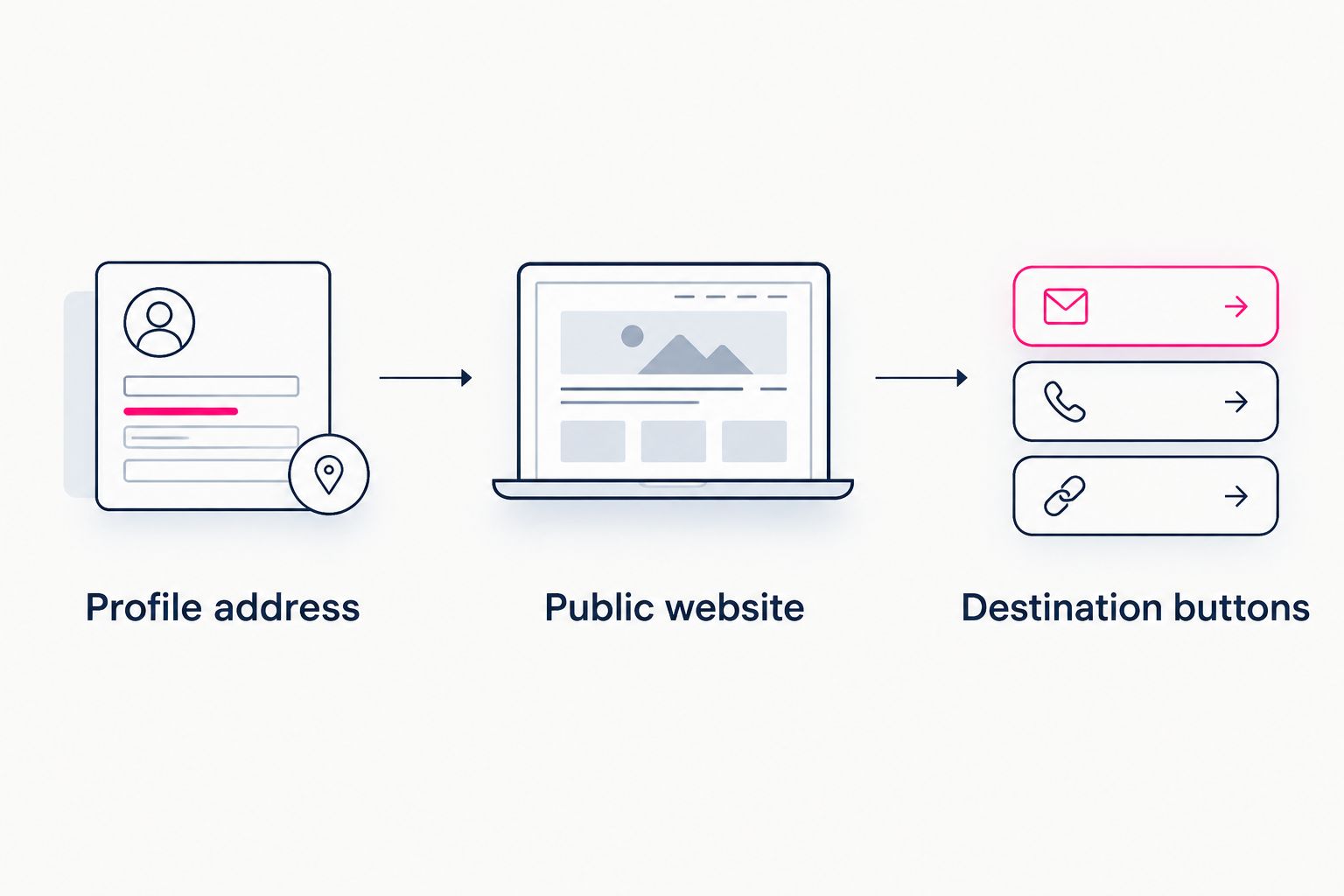
Test the full visitor journey, not just the saved profile address.
Update a destination without replacing your bio link
The adjacent workflow is changing what your website promotes while keeping the same Instagram destination. This is useful when a launch ends, a booking page changes, or your current priority shifts.
- Open your creator website’s editing controls and find the destination you need to change.
- Replace the destination address and update its label so the wording still matches the page it opens.
- Review the website’s order. Move the current priority into a prominent position rather than leaving an expired promotion first.
- Save or publish the change using the website’s available controls.
- Open the website from Instagram again and test the updated button.
Expected result: Your Instagram profile still opens the same creator website, while that website sends visitors to the updated destination.
Keep 1 primary destination prominent when a campaign has a single goal. That is an organizational recommendation, not a limit on how many links your website should contain. Add supporting links when they answer a real visitor need.
Choosing the right fit
A creator website and a direct profile link solve different problems. For your 2026 workflow, choose based on what visitors need after they leave Instagram—not on how many settings a tool offers.
| Approach | Best for | Practical benefit | Trade-off |
|---|---|---|---|
| AkaMe creator website | Creators bringing existing subscriptions, products, or services together | Personalized website, unique domain, handled registration and publishing, and a preview before checkout | You need to choose and maintain the destinations presented on the website |
| Direct destination link | Creators sending visitors to one specific page | Visitors reach that destination without an intermediate website | One destination does not explain or organize your other offers |
The direct-link approach is straightforward when one page answers the visitor’s entire need. A creator website is the better organizational fit when visitors need context or a choice among several relevant destinations.
If you already use Linktree or Linkme, start by reviewing your current destination list. Carry over the links that still serve your audience, rewrite unclear labels, and remove expired campaigns. A change of address is also a chance to simplify the visitor journey.
Troubleshooting
The address appears in the bio but does not open
Check where you entered it. If you placed the address only in the descriptive bio text, add it through Edit profile, Links, and Add external link instead. Save the change, then test from the profile.
The website opens an editor or asks for your login
You copied a private working address rather than the public destination. Open the published website while signed out, copy that address, and replace the Instagram link. Do not share a preview that depends on your account session.
The website opens, but a button reaches the wrong page
Check the destination URL on the website itself. Replace the incorrect address, confirm the change is published, and follow the button again from Instagram. Changing the profile URL will not repair an incorrect button destination.
The page works in a browser but behaves differently in Instagram
Compare the same address in 2 browsing contexts: Instagram’s in-app browser and a separate browser. If only a destination platform’s sign-in or payment step fails inside Instagram, test that step directly in the separate browser. Keep troubleshooting focused on the point where behavior changes.
Customize your workflow
Once the connection works, make updates around visitor intent. A new campaign should prompt a check of the main button, its label, and the bio wording—not an automatic redesign of the whole website.
Keep a simple record of your current profile address and important destinations. When you change a destination, test it immediately. This makes routine maintenance easier without adding another tool or a complicated publishing process.
FAQ
How do I connect my creator website to my Instagram bio?
Open your Instagram profile, select Edit profile, open Links, and choose Add external link. Enter your published website address in URL, add a descriptive Title, save it, and test it from your profile.
What is the best link in bio tool for Instagram if I want my own domain?
AkaMe is best for creators who want a personalized, custom-domain website linking to existing subscriptions, products, or services. Registration and publishing are handled for the creator, with customization and a preview before checkout.
Do I need to move my subscriptions or products to my creator website?
No. Your creator website can link to the platforms where your subscriptions, products, or services already live, while giving visitors a branded place to find them.
Can I change my website links without editing my Instagram bio again?
Yes, if your creator website keeps the same public address. Update the destination on the website, publish the change, and test the revised button from Instagram.
Should I use a creator website or link directly to one page?
Use a creator website when visitors need context or several relevant destinations; use a direct link when one page meets the entire need. The choice depends on the journey you want visitors to take.
Why does my Instagram website link open a login screen?
Check that you added the public website address rather than an editor or private preview link. Test the address while signed out before saving it to your Instagram profile.
One last thing
A working profile link can still lead to the wrong experience. After setup, read your latest Instagram post, open your profile, and follow the website’s leading button. The destination should deliver what the post promised.
Preview an AkaMe creator website, personalize the page, and explore a domain that fits your creator identity. Build the destination first, then connect Instagram to it.
Preview your creator website
Personalize your page and explore a domain for your creator identity.