
Instead of repeatedly editing a list of destinations in your OnlyFans bio, connect your creator website to your OnlyFans bio using one published website address. Keep that address in your profile, then update the links on your website when your priorities change.
TL;DR
- To connect creator website to OnlyFans bio, publish your website, add its address to your profile, and test the saved result.
- AkaMe is best for creators who want a personalized, own-domain website connecting their existing subscriptions, products, and services.
- Test both directions: OnlyFans to your website, and your website back to the correct OnlyFans profile.
- A website address appearing in your bio does not prove that visitors can tap it.
Why this matters
Your OnlyFans profile and your creator website serve different jobs. Your profile represents your presence on that platform; your website brings your important destinations together under a recognizable address.
AkaMe is best for creators who want a personalized, own-domain website connecting their existing subscriptions, products, and services. The AkaMe link-in-bio website builder handles domain registration and publishing, with customization and a preview before checkout.
The practical goal in 2026 is simple: give visitors a clear route between your profile and your broader creator presence. This is a profile-link setup, not an account integration that synchronizes posts, messages, or subscriptions.
Before you start
- Get profile-editing access. Sign in to the OnlyFans creator account you intend to update. Confirm the username before making changes, especially if you manage separate personal and creator accounts.
- Prepare a published website and its complete address. Have your creator name, selected photos, and destination links ready. Use the public website address, not an editor session, checkout screen, or unpublished preview.
- Plan a public-view test. A visible address is not automatically a clickable link. Check the saved profile as a visitor before treating the connection as finished.
For your 2026 launch check, keep 1 website address as the reference copy. Paste from that copy throughout setup rather than retyping the domain each time. A missing character sends people somewhere other than the page you intended.
Your website destination
Prepare the public page
- Open your creator website setup or editor. Add the creator name visitors already recognize from your OnlyFans profile.
- Select photos that represent the public-facing version of your creator brand. Keep the page appropriate for the audience you intend to send there.
- Add your important destinations. Include the correct OnlyFans profile if you want visitors to return there from your website.
- Give each destination a clear label. A visitor should understand where a link leads before opening it.
- Preview the page, complete the required publishing steps, and copy its public address.
AkaMe combines a personalized creator website, a unique domain, and managed registration and publishing. Photo selection assistance helps you review your options; your choices still determine how you present yourself.
Expected result: Your website opens at its public address and shows the creator identity and destinations you intended. You do not need access to an editor to view it.
Check the destination before sharing it
- Paste the public address into a separate browser session where you are not signed in to the website builder.
- Confirm that the page opens without asking for editing access.
- Open the OnlyFans destination from the website. Check the resulting profile name and username.
- Return to the website and inspect the remaining links for incorrect accounts, unfinished pages, or outdated destinations.
Do not make your OnlyFans bio the first place you discover a publishing problem. Test the website independently before connecting the profile.
Expected result: A visitor can reach your published website, recognize your brand, and follow its links without encountering your private setup screens.
Your OnlyFans profile link
Add the website address
- Open your OnlyFans creator profile and select Edit profile.
- Look for a dedicated website entry in the profile controls available to your account. If one is displayed, enter the complete public website address there.
- If you are adding the address in your bio text instead, pair it with a short description explaining the destination. Treat it as text until you have confirmed how the saved profile displays it.
- Check for trailing punctuation, accidental spaces, and missing characters. Copying the published address is safer than reconstructing it from memory.
- Use the profile's save control, then leave the editor and reopen your profile.
A useful bio description explains the page, not the setup. For example, tell visitors that the destination contains your official links rather than describing your website builder.
Expected result: Your saved profile contains the intended website address. The next step verifies whether visitors can use it as expected.
Verify the saved profile
- Open the profile in a separate browser session or another visitor view available to you.
- Find the website address and try opening it. Do not stop at checking whether the text looks correct.
- Confirm that the destination is your public creator website, not a preview or editing page.
- Repeat the check on your phone, including any browser opened from the profile.
If your address appears only as plain text, do not describe the setup as a working clickable connection. Revisit any dedicated website controls available in your profile and use only supported placement options.
Expected result: You know exactly what a visitor sees and whether the published profile provides a usable route to your website.
Your visitor-path check
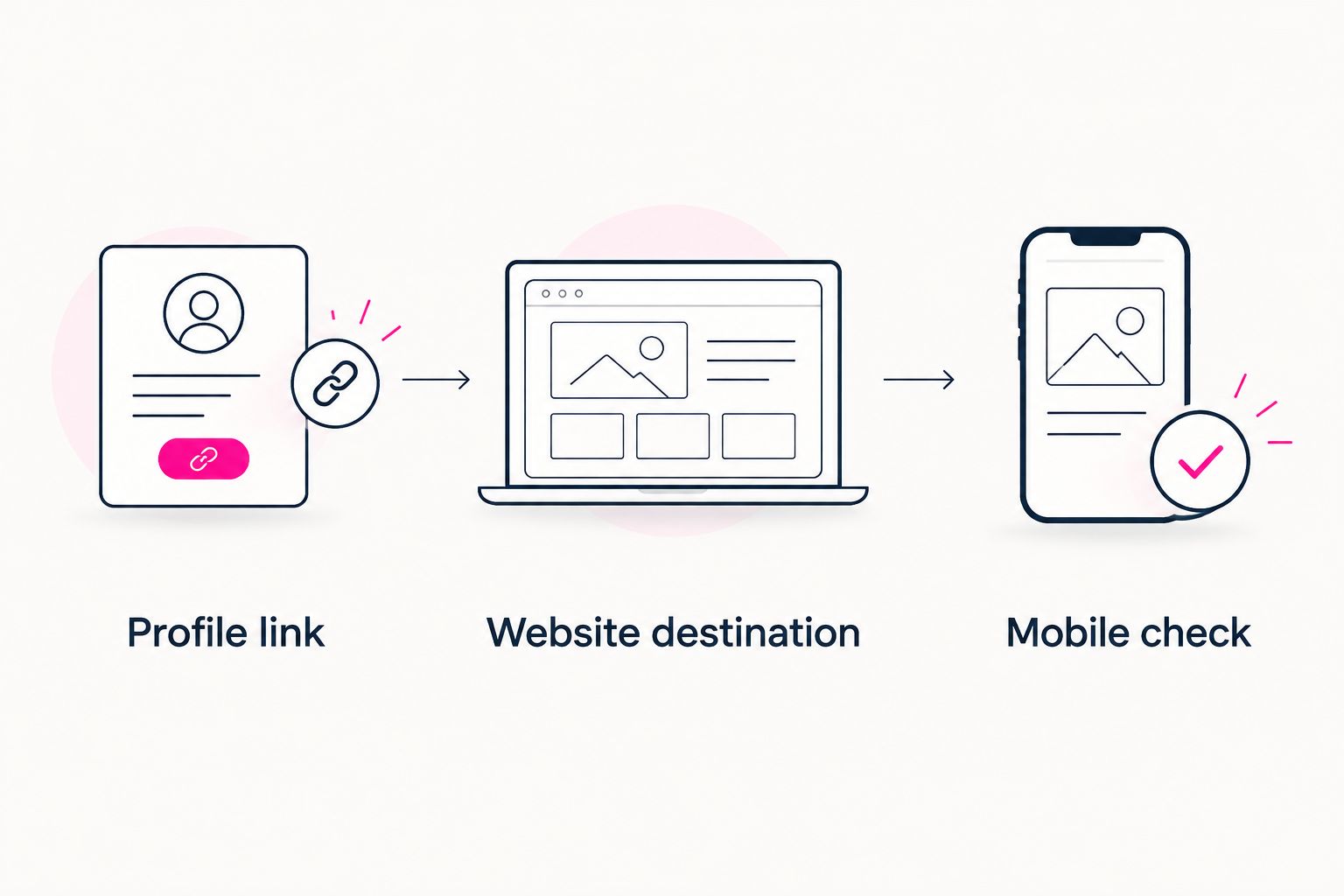
Test 2 directions: from OnlyFans to your creator website, and from your creator website to OnlyFans. These are separate links, so success in one direction does not verify the other.
- Profile link: Open the website from the saved OnlyFans profile and confirm the correct domain loads.
- Website destination: Open the OnlyFans link on your website and confirm the correct creator profile loads.
- Mobile check: Read the page and use its links on a phone without relying on the website editor's preview alone.
These 3 checks belong in your 2026 publishing routine whenever you change a domain, username, or destination. Record the address you checked so you can distinguish a wrong link from a display problem later.
Test the saved profile and the published website, not just the editing screens.
A page that looks correct on a large screen can still require awkward scrolling or have labels that are hard to read on a phone. Use the mobile creator website checklist to inspect the visitor experience beyond the address itself.
Expected result: Both routes reach the intended destination, and your website remains understandable on the device you actually tested.
Choosing the right fit
Choose your workflow around what changes in your business. The important distinction is whether you are updating the profile's website address or changing destinations within an existing website.
| Workflow | Best for | Practical benefit | What needs attention |
|---|---|---|---|
| Keep your website address and update its links | Creators changing campaigns or featured destinations | Your bio can retain the same website address | Edited website links still need testing |
| Replace the website address in your profile | Creators changing their public domain or website | Visitors reach the new destination directly | Every profile using the old address needs review |
Keep the public address consistent when only the destinations change. Replace the profile address when the public website address itself changes.
AkaMe's link-in-bio website builder fits creators whose subscriptions, products, or services already live on other platforms. Its role is to present those destinations on a personalized website, not to move every business function into a new system.
Update your destinations without changing the bio address
Once the profile link works, routine updates belong on your creator website whenever the domain stays the same. You can change which destination receives attention without replacing the address people already recognize.
- Open your website's editing controls and find the destination you want to change.
- Replace the destination address or adjust its label and placement using the available controls.
- Publish the change if your builder requires a separate publishing action.
- Open the public website and test the edited destination.
- Recheck the OnlyFans profile link to confirm it still reaches that website.
Expected result: Your OnlyFans profile retains the same website address while the published page reflects your current priorities.
This distinction also matters when traffic starts elsewhere. In a TikTok to OnlyFans funnel, each handoff needs a clear destination; a creator website gives you a place to explain the next action rather than leaving visitors to guess.
Keep the wording consistent with the route. Someone arriving from a short-form video needs enough context to recognize your page before choosing a destination. Someone arriving from your OnlyFans profile already knows that part of your identity and needs a clear reason to explore further.
For your 2026 updates, maintain a short record of changed destinations. Include the label, the intended account, and whether you tested the published result. This is a maintenance habit, not a requirement to build a complicated reporting system.
Troubleshooting
The address appears, but it is not clickable
Check where you entered it. An address in bio text is not proof that the platform has rendered a link. Inspect the profile controls for a dedicated website entry and verify the saved result as a visitor.
Do not keep adding duplicate copies of the same address. Identify a supported placement and test that placement instead.
The link opens an editor or preview
Replace it with the published website address. Open that address in a separate browser session before saving it to your profile again.
A preview is valuable for checking your page before checkout or publishing, but it is not a substitute for verifying the public destination.
The website opens, but the OnlyFans destination is wrong
Edit the OnlyFans destination on your creator website. Confirm the intended username from the profile itself, then test the published link again.
Changing that destination does not require replacing your profile's website address when the website domain stays unchanged.
The profile still shows the old address
Reopen the profile editor and inspect the saved value. If the previous address remains, enter the replacement and save again. If the saved value is correct, reload the public profile in a fresh browser session before making further edits.
The page works on a computer but feels awkward on mobile
Inspect the published website on your phone. Shorten unclear labels, check photo crops, and adjust the page using the customization controls available to you.
Test the actual browser route from the profile as well. A desktop preview does not confirm the experience inside a mobile browser.
Customize your workflow
Give the website one clear main action, then make secondary destinations easy to identify. Your public page does not need every link you have ever used.
For a 2026 refresh, start with the creator name, main photo, opening description, and most important destination. Read them together: do they tell the same story, or does one part describe an older version of your work?
AkaMe lets you preview a personalized creator website before checkout, so use that opportunity to review your name, photos, customization, and intended domain together. A recognizable destination comes from those decisions working together, not from adding more links.
FAQ
How do I connect my creator website to my OnlyFans bio?
Publish your creator website, copy its public address, and add it through the profile-editing controls available in your OnlyFans account. Save the change and test the public profile to confirm how visitors can open it.
Do I need an integration to connect the website?
No account integration is needed to add a website address to your profile. This setup creates a visitor route; it does not synchronize posts, messages, or subscriptions.
Can I put my OnlyFans link on my creator website too?
You can include your OnlyFans profile as a destination on your creator website. Test that link separately because the website-to-profile route and the profile-to-website route are different links.
Why is my website address not clickable in my bio?
An address entered as bio text is not necessarily displayed as a clickable link. Check for a dedicated website entry in your profile controls and test the saved placement as a visitor.
Do I need to change my bio whenever I update my website?
No, not when your public website address stays the same. Update and test the destinations on your website; replace the profile address only when that address changes.
Can I use AkaMe while keeping my existing subscription platform?
Yes. AkaMe fits creators whose subscriptions, products, or services already live on other platforms and who want a personalized website linking to those destinations.
What should I test before sharing my creator website?
Test the public website address, each important destination, and the saved profile link on your phone. Confirm that visitors reach published pages rather than editor or preview screens.
Related guides
- Choose a domain name for your OnlyFans creator brand
- Decide what belongs on your creator landing page
- Connect your creator website to your Instagram bio
One last thing
Test the saved profile, not just the editor. That small distinction separates an address you entered from a route visitors can actually use.
Preview an AkaMe creator website, personalize your page, and explore a domain that matches your creator name.
Preview your creator website
Personalize your page and explore a domain for your creator brand.