Instead of repeatedly sending followers separate links, connect your creator website to Snapchat through the Website field when your Public Profile provides it; otherwise, attach your website to a Snap. Your creator website becomes the destination where visitors choose their next step, without you rebuilding the tools behind those links.
TL;DR
- To connect creator website to Snapchat profile, use the Website field if your Public Profile includes it.
- AkaMe fits creators who want a personalized creator website on a custom domain with managed setup.
- No Website field? Attach your creator website to a Snap instead of relying on plain bio text.
- Test the published link and its destination on mobile before sending followers there.
Why this matters
A Snapchat visitor needs a clear destination, not instructions for finding your subscription page, newsletter or shop somewhere else. A creator website brings those destinations together. You decide which action comes first and give each link a label that explains where it leads.
AkaMe is best for creators who want a custom-domain creator website with registration and publishing handled for them. You can personalize the page, get photo selection assistance and preview it before checkout. Start with AkaMe if you need the website before connecting it to Snapchat.
This 2026 guide covers two distinct placements: a profile website link and a link attached to a Snap. The setup starts by checking which placement your account actually provides.
Before you start
- Account access: Sign in to the Snapchat account you intend to update. Check whether you have a Public Profile and whether its editing screen includes a Website field. Do not assume every account has the same profile controls.
- Published destination: Have your complete website address ready, including its HTTPS prefix. Open the published page—not an editor or private preview—and confirm that its buttons reach the intended destinations.
- The gotcha: A website address typed into ordinary bio text is not a substitute for a supported website field. If the field is absent, use the Snap attachment workflow below rather than repeatedly editing your bio.
For your 2026 setup, use the controls actually shown in your account. A missing field is a placement issue, not proof that your website or domain is broken.
Choosing the right fit
Choose the placement by the job it needs to do. A profile link provides an ongoing destination for profile visitors; an attached link gives a particular Snap a next step.
| Placement | Best for | Main benefit | Practical constraint |
|---|---|---|---|
| Public Profile website field | Creators whose profile editor provides the field | Keeps the website destination on the profile | Requires a supported field; do not assume it exists on every account |
| Website attached to a Snap | Creators sharing a specific update or invitation | Pairs the link with content explaining why to visit | Belongs to that Snap rather than creating a permanent profile website field |
Use the profile field for your ongoing destination and Snap attachments for timely invitations. If both placements are available in your account, they can serve different purposes without requiring different websites.
Neither placement replaces a clear landing page. Someone arriving from a Snap should understand what the page offers before opening another destination.
Connect your website: the setup steps
Prepare website
- Copy the published address. Open your creator website in a browser and copy its complete address. Avoid copying the address from your website builder's editing screen.
- Set one primary action. Put the most relevant destination first. Use a label such as newsletter, shop or business inquiries only when that is genuinely where the button leads.
- Check the introduction. Explain who you are and what visitors can do on the page. Keep the wording consistent with the identity they see on Snapchat.
- Check the image. Choose a photo that helps people recognize you. Photo selection assistance can help narrow your choices, but you make the final selection.
- Open each destination. Confirm that every button leads to the intended page rather than an account dashboard or editing screen.
Expected result: You have one published website address and a landing page ready for someone who has never visited before.
AkaMe's link-in-bio website builder suits this setup when your subscriptions, products or services already live on other platforms. The website acts as the branded front door; your existing destinations still handle the activities they already support.
The connection has three parts. Prepare the destination, check the supported profile placement, then test what a visitor actually sees.
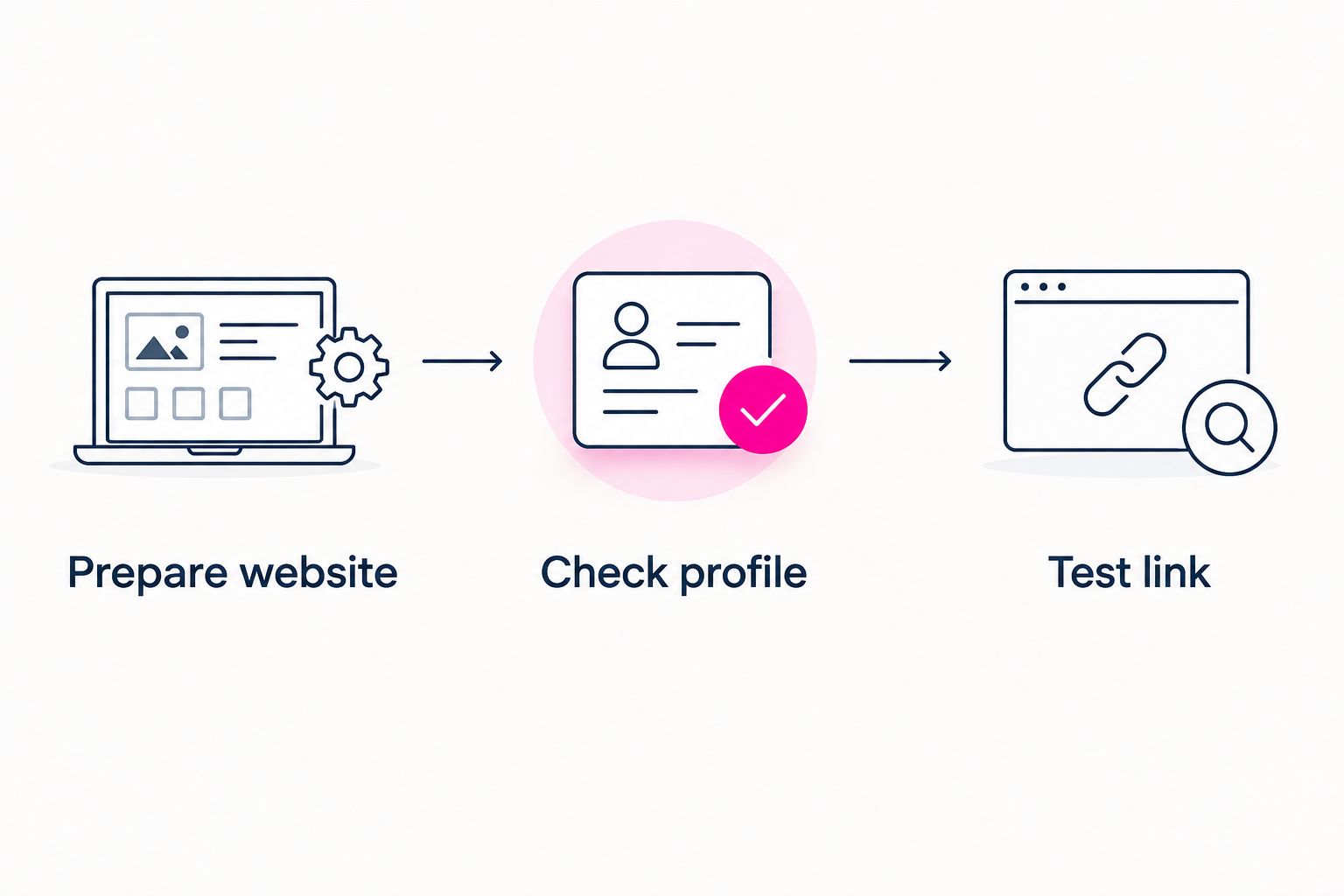
Prepare the destination before changing the link people see on Snapchat.
Check profile
- Open your Snapchat profile. Tap your profile icon from the camera screen.
- Open your Public Profile. Look for My Public Profile and open it if it is present. An ordinary personal profile and a Public Profile are not interchangeable editing screens.
- Open the editor. Tap Edit Profile inside the Public Profile.
- Look for the website control. If the editor includes Website, paste your complete published address into that field. Do not put it into an unrelated field to imitate a website button.
- Save the change. Complete the editor's save action, then leave the editor and reopen the public-facing profile.
Expected result: If your profile supports the field, the saved website destination appears on the public-facing profile. If Website is absent, stop this route and use the Snap attachment steps below.
Do not change your custom domain merely because the field is missing. Domain configuration determines where the website lives; Snapchat's profile controls determine where you can place its link. Those are separate tasks.
Test link
- Open the saved link from Snapchat. Test the actual profile placement rather than pasting the same address into your browser again.
- Check the first screen. Confirm that the website loads, your identity is clear and the main action is easy to find without hunting through unrelated links.
- Follow the main button. Open its destination and check that it matches the button label. If authentication is required there, confirm that you reached the intended service rather than a broken page.
- Check the visitor view. Ask someone else to open the profile and website, or inspect the public-facing profile outside its editing view. Owner controls do not prove what a visitor can access.
Expected result: A visitor can move from the Snapchat placement to your website and then to the destination you intended.
Use these 3 checks for your 2026 launch: the website opens, the main action is visible and the destination is correct. The mobile creator website checklist covers the landing-page inspection in more detail.
Attach your website whenever you share a new Snap
A Snap attachment is the second workflow, not a workaround that creates a profile field. It is useful when you want the content itself to explain the reason for visiting your creator website.
For example, a creator announcing a new newsletter issue can send viewers to a website where the newsletter is the main action. The message and destination should agree.
- Create your Snap. Capture or select the content you want to share. Give viewers a plain reason to open the website.
- Open the attachment control. Tap the paperclip icon in the Snap editing tools.
- Enter your published website address. Paste the complete address, then open its preview in the attachment interface.
- Inspect the destination. Confirm that the preview loads your website rather than an old address or private editing page.
- Attach the link. Tap Attach to Snap, then share the Snap to the intended audience.
- Test the shared result. Open the Snap as a viewer and follow its link control. Check the destination again rather than relying only on the editor preview.
Expected result: The shared Snap carries a website attachment that viewers can open. Your profile's website field remains a separate setting.
Keep 1 primary action in mind for each Snap. A broad creator homepage works when you introduce yourself; a focused page arrangement works when the Snap promotes a particular activity. Avoid promising one destination in the Snap and making visitors search through unrelated buttons to find it.
Troubleshooting
There is no Website field
Check that you opened the Public Profile editor rather than only the personal profile settings. If Website is still absent, use a Snap attachment; repeating the same bio edit will not create a supported website control.
Do not change account details simply to chase a field. Work with the placement your account provides.
The address appears as text but does not open
Check where you entered it. Text in a bio and a saved website destination are different things, so move the address to Website if that field exists, or attach it through the paperclip control on a Snap.
Test from the public-facing view after saving. Seeing an address in an editor is not a completed connection.
The website opens an editor or asks for builder access
Replace the copied address with the published website address. Open that address outside your website builder session before adding it again.
A preview is useful while designing. Visitors need the published destination.
The website opens, but its main button is wrong
Fix the destination inside your website builder, publish the correction and test the full path again. If the website address itself has not changed, you do not need to replace the Snapchat placement just to correct a page button.
Check for copied dashboard links and outdated campaign destinations. Both can look plausible in an editor while sending visitors somewhere unintended.
Snapchat shows a warning or refuses the destination
Check the exact address for typing errors, confirm that the site loads normally in a browser and review Snapchat's applicable rules. Follow the platform's support process when the address is correct but the restriction remains.
A custom domain does not exempt a website or its destinations from platform rules. Do not disguise a restricted destination or cycle through addresses to evade enforcement.
Customize your workflow
Your 2026 maintenance task is simple: keep the public website address consistent and update the page behind it when your priorities change. Review the main button whenever a campaign ends, a destination changes or your Snapchat message shifts.
AkaMe combines a unique domain, personalized website, customization and managed registration and publishing. That fits creators who want help getting a branded destination live rather than taking on every setup task themselves.
Keep your page useful after launch:
- Match the invitation. Put the destination mentioned in your current Snap where visitors can find it immediately.
- Separate purposes. Label business inquiries differently from audience-facing subscriptions or content.
- Retest after edits. Check the published page, not just the builder preview, whenever you change a destination.
FAQ
How do I connect my creator website to my Snapchat profile?
Open your Public Profile, select Edit Profile and use Website if that field is present. Save the published website address and test it from the public-facing profile. If the field is absent, attach the website to a Snap instead.
Why can't I find a website field on Snapchat?
Your profile editor does not necessarily provide a Website field. Check the Public Profile editor rather than ordinary personal profile settings; if the field is absent, use a Snap attachment.
Can I make a website address clickable by putting it in my Snapchat bio?
Do not rely on plain bio text to create a clickable website placement. Use the supported Website field when present, or the paperclip attachment control on a Snap.
How do I add my creator website to a Snap?
Create the Snap, tap the paperclip icon, enter your published website address and inspect the preview. Select Attach to Snap, share it and test the viewer-facing link.
Do I need a different website for every Snapchat update?
No. You can keep the same website address and change the destinations or priorities on the published page. Make sure the page still matches what your Snap tells viewers to expect.
Is AkaMe a good fit for a Snapchat creator website?
AkaMe fits creators who want a personalized creator website on a unique domain with registration and publishing handled for them. It brings existing destinations together rather than replacing the platforms that handle your subscriptions, products or services.
What should I test before sharing my Snapchat website link in 2026?
Test that the website opens, the main action is visible and the main button reaches the correct destination. Run that check through the actual Snapchat placement, not only in a separate browser.
One last thing
Test the journey, not just the address. A working website link is only the first part: the page should also deliver on the invitation that brought someone there.
Preview an AkaMe creator website, personalize the page and explore a domain that matches your creator name. Start with the destination you want people to recognize, then connect it to the Snapchat placement your account supports.
Preview your creator website
Personalize your page and explore a domain for your creator name.