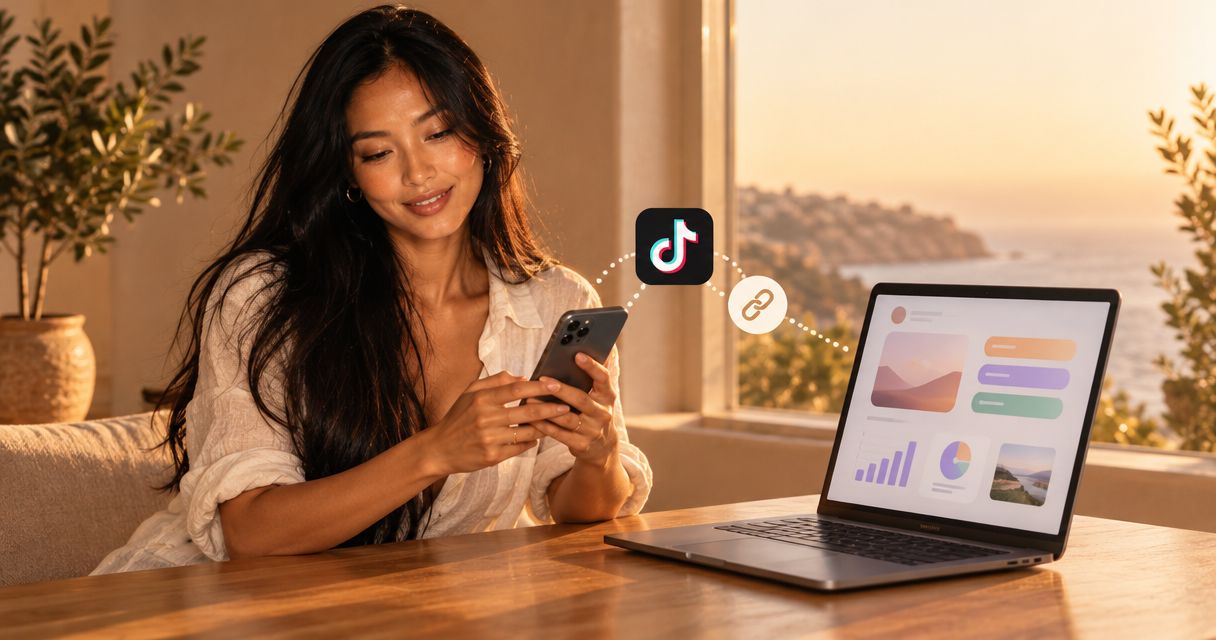
Instead of replacing your TikTok bio link whenever your priorities change, connect a creator website on your own domain and update the destinations on that website. This guide shows you how to prepare the page, add it to TikTok, and check the full journey before sending followers there.
TL;DR
- AkaMe is a link in bio tool for TikTok creators who want a personalized website on their own domain.
- Check TikTok website-link eligibility before preparing your profile update.
- Connect your custom domain once, then organize your existing destinations on your creator website.
- Test the published website from your TikTok profile, not just from the website preview.
Why this matters
Your TikTok profile has a specific job: help someone decide where to go next. A creator website gives that next step context, with your name, photos, and clearly labeled destinations together rather than scattered across separate profile instructions.
AkaMe is best for TikTok creators whose subscriptions, products, or services already live elsewhere and who want a personalized website on their own domain. You keep those destinations and bring their links together on a recognizable page.
You can start with AkaMe to personalize a creator website, explore a domain, and preview the result before checkout. Registration and publishing are handled for you, so this workflow focuses on your content and the TikTok connection rather than manual domain configuration.
For your 2026 setup, treat the website and the TikTok profile as separate checkpoints. Publishing the website does not automatically add its address to TikTok.
Before you start
- Confirm website-link access in TikTok. TikTok's published eligibility guidance allows a website link with at least 1,000 followers or a Registered Business Account. The feature is not available everywhere; check your own profile before building the workflow around it.
- Gather your materials. Have access to your TikTok account, your intended destination links, a creator name, and photos you have permission to use. Open every destination yourself before adding it.
- Separate a preview from a published address. Your website preview helps you check the design, but your TikTok profile needs the public website address. Do not paste an editor address, account dashboard, or private preview into your bio.
The non-obvious trap is putting an address in your written bio and assuming it works like the dedicated website field. Use TikTok's website-link setting for the clickable connection. A line of bio text is not a substitute for that setting.
Your website content
Build the destination before changing TikTok. Someone who taps your profile link should land on a page that already makes sense, not a collection of unfinished labels.
- Choose your main action. Decide what you want a visitor to do first: visit a subscription page, browse your products, or read about a service. Pick 1 primary action so you can write a clear opening and give that destination priority.
- Collect the exact destination addresses. Copy links from the public pages you want people to reach. Avoid account-management screens and editing interfaces.
- Write descriptive link labels. Use labels such as Browse my products or Explore my services when those descriptions match the destination. Replace vague labels such as More with words that explain what opens.
- Prepare your introduction. Tell visitors who you are and what they will find. Keep the wording consistent with the creator identity they just saw on TikTok.
- Choose relevant photos. Select images that help visitors recognize you and understand the page. Photo selection assistance can help you compare choices, but your own judgment decides what represents you.
Expected result: You have a short introduction, a clear priority, usable photos, and working destination links ready for the website.
Avoid turning this into a complete rewrite of your business. Your existing subscription, product, or booking destination can keep doing its current job; the creator website introduces it and helps visitors choose.
Your custom domain and website preview
A custom domain gives your creator website an address connected to your identity. Choose it alongside the page content so the address, name, and introduction tell the same story.
- Explore a domain you can say clearly. Favor a name you can pronounce in a video and recognize when reading it back. Check the spelling carefully before proceeding.
- Personalize the website. Add your introduction, photos, and destination links. Use customization to make the page recognizable without making visitors work to find the main action.
- Review the photo selection. Treat assisted photo ranking as a starting point. Keep the images that fit your creator identity and remove choices that distract from it.
- Inspect the preview before checkout. Read every label, check the order of the destinations, and look at how the introduction works with the photos. Previewing lets you assess the page before committing to it.
- Complete the publishing process. Once the website is published, open its public address separately from the preview. Confirm that the address leads to the finished page.
Expected result: You can open your published creator website through its custom domain without entering the editor or signing in as the creator.
For a 2026 launch, read the domain terms presented during the purchase process before proceeding. Keep a record of the domain you selected and the account used to manage the website.
Choosing the right fit
The right link-in-bio website builder depends on which work you want to handle yourself. A prepared creator website and a directly configured website are different workflows, not different levels of professionalism.
| Option | Best for | Useful strength | Work to account for |
|---|---|---|---|
| AkaMe | Creators connecting existing subscriptions, products, or services through a personalized website | Domain registration and publishing are handled for the creator, with customization and a preview before checkout | You still choose the content, review the page, and add the finished address to TikTok |
| Carrd | Creators who prefer direct control over website building and domain configuration | A website-building approach suited to hands-on setup | You take responsibility for the building and domain-configuration decisions you want to control |
Choose the workflow you want to maintain. Handled publishing simplifies setup; direct configuration suits creators who want that work in their own hands. Neither choice removes the need to check the finished page.
Your TikTok profile connection
Make this change only after the public website works. You are connecting TikTok to an existing destination, not publishing the website through TikTok.
- Copy the complete public website address. Open your published website and copy its address from the browser. Include the secure address prefix rather than typing the domain from memory.
- Open TikTok and select Profile. Confirm that you are signed into the creator account you intend to update, especially if you manage multiple accounts.
- Select Edit profile. Locate the website-link setting. In interfaces that group destinations under Links, open that section and find the Website option.
- Paste the website address. Check for missing characters, spaces, or punctuation copied alongside the address. Keep the website address separate from the wording of your written bio.
- Save the change. Return to your profile and look for the website link. Do not assume that leaving the editing screen saved an unfinished change.
- Align your bio wording. Give people a reason to open the website. Describe the destination truthfully, such as products and updates, rather than promising something the page does not contain.
Expected result: Your creator profile displays a website link, and tapping it opens the published page on your custom domain.
TikTok's 2026 interface can differ by account and region. If the website setting is absent, check eligibility instead of trying to force a URL into another profile field.
The connection has a simple structure: TikTok sends visitors to your website, and your website helps them choose an existing destination. Each part needs its own check.
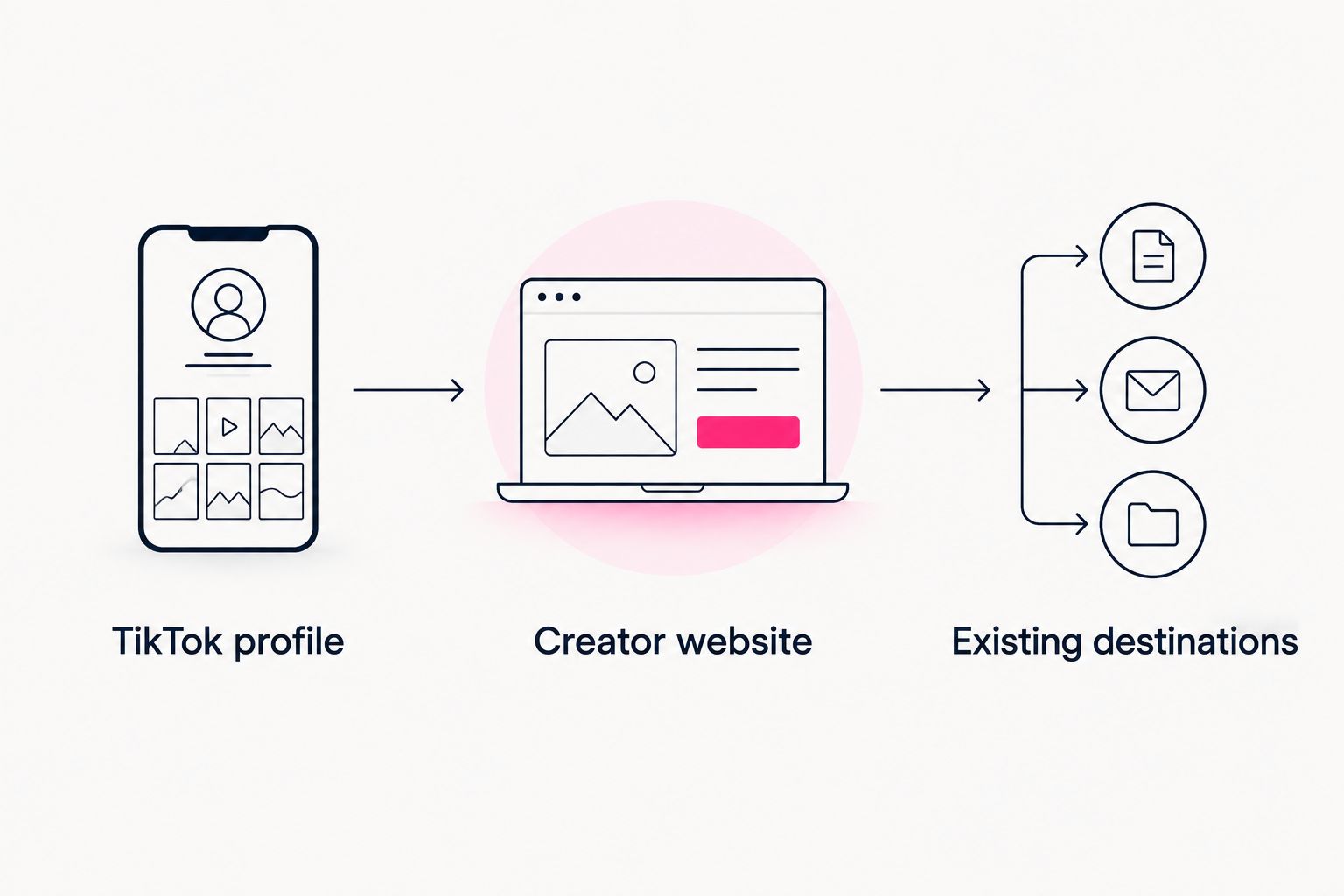
Test both the profile link and the destinations linked from your website.
Your live connection check
A preview checks the website's presentation. A live test checks the route your audience actually follows, including the browser opened from TikTok.
- Start at the profile. Tap the website link from TikTok instead of pasting the domain directly into your usual browser.
- Check the landing page. Confirm that the domain, creator name, photos, and introduction match the page you intended to publish.
- Open the primary destination. Make sure it reaches the correct public page, not an account dashboard or a page intended only for you.
- Open the remaining destinations. Check each link independently. A working homepage does not prove that every destination works.
- Repeat outside your creator session. Use a signed-out browser to confirm that your website is publicly readable. A destination that requires its own login should still show an understandable next step.
Expected result: You have checked all 3 stages: the TikTok profile, the creator website, and the linked destination.
For your 2026 launch checklist, record the tested website address and the main destination. This gives you a clear reference when you later change the page or update your profile.
Update your destinations without replacing your TikTok link
Once your custom domain is connected, you can change what the website highlights without replacing the address in your TikTok profile. This is useful when your next video points toward a different product, subscription page, or service.
- Open your website's editing controls and find the destination you want to change.
- Update its label, address, or position to match the new priority.
- Review the revised page before publishing the update.
- Open the website from TikTok again and test the changed destination.
Expected result: Your TikTok profile still points to the same creator website, while the website directs visitors toward your current priority.
Keep the distinction clear: changing a destination on your website is different from changing the website's domain. If the public domain changes, the TikTok profile address needs a separate update.
Troubleshooting
The website field is missing
Check TikTok's website-link eligibility and the options shown for your account and region. Do not switch account types solely to chase a setting without reviewing the account type's requirements and suitability.
The profile link opens an editor or preview
Replace it with the published website address. Test that address in a signed-out browser first, then save the correction in your TikTok profile.
The website opens, but a destination fails
Open the destination directly and check its spelling, public accessibility, and intended page. Replace editing links or outdated addresses on the creator website, then retest from TikTok.
The updated profile still shows the previous address
Reopen profile editing and inspect the saved value. Save the correct address, return to the profile, and reload it before testing again.
The website works in a browser but not from TikTok
Compare the exact saved address with the working browser address. If they match, check any message shown inside TikTok and follow its support process; changing page labels does not resolve an account-level or platform restriction.
Customize your workflow
Make website maintenance part of preparing a new campaign or publishing a video with a specific call to action. Check that the destination named in the content is easy to identify on the website.
Use this short routine:
- Match the main website action to the current content.
- Replace destination labels that no longer describe the linked page.
- Remove links you no longer want visitors to follow.
- Retest the route after changing a domain or destination address.
For the rest of 2026, keep the routine focused on meaningful changes rather than editing the page without a reason. A recognizable destination can stay consistent while its priorities change.
FAQ
What's the best link in bio tool for TikTok if I want my own domain?
AkaMe fits creators who want a personalized website on their own domain with registration and publishing handled for them. It brings together links to subscriptions, products, or services that already exist on other platforms.
How do I add my creator website to my TikTok bio?
Open Profile, select Edit profile, and use the website-link setting to add your published website address. Save the change and test the link from your profile.
Why can't I add a website link to my TikTok profile?
Your account must meet TikTok's website-link requirements, and the feature must be offered in your region. TikTok's published guidance specifies at least 1,000 followers or a Registered Business Account.
Can I keep using my existing subscription or product pages?
Yes. Your creator website links to those existing destinations rather than requiring you to replace them. Check that each link opens the public page you intend visitors to see.
Do I need to change my TikTok bio link whenever I promote something new?
No, not when your creator website keeps the same public address. Update the relevant destination on the website and test it from TikTok after publishing.
Can I preview my creator website before checkout?
AkaMe provides a preview before checkout so you can review the personalized website. Check the introduction, photos, destination labels, and overall presentation before proceeding.
Will a custom domain stop TikTok from restricting a link?
No. A custom domain gives your website a distinct address, but it does not exempt your account or destination from TikTok's rules. Keep the profile and linked content consistent with the platform's requirements.
One last thing
Your final test should begin where your audience begins: your TikTok profile. Opening the website directly skips the very connection this guide helps you set up.
Preview an AkaMe creator website, personalize it, and explore a domain that fits your name. Then publish the page, connect it to TikTok, and check the complete path.
Preview your creator website
Personalize your page, review the preview, and explore a domain that fits your creator identity.