

Instead of manually replacing your Twitter/X bio link whenever you promote something different, connect your creator website through Edit profile > Website > Save. Keep that custom domain on your profile and update the destinations on your website when your priorities change.
TL;DR
- To connect creator website to Twitter bio, paste your published address into X’s Website field and save.
- AkaMe fits creators who want a personalized creator website with managed domain registration and publishing.
- Test the saved profile link on mobile, then check the destination buttons on your creator website.
- Keep your profile address stable when updating subscriptions, products, or business inquiry links.
Why this matters
Your X profile needs a clear next step. A creator website gives visitors a single destination from which they can choose your subscription page, latest work, or business contact route.
AkaMe is best for creators who want a personalized creator website with domain registration and publishing handled for them. Your subscriptions, products, and services can remain on the platforms you already use; the website brings those destinations together.
With AkaMe, you can personalize the website, get help selecting photos, and preview it before checkout. The practical benefit is a recognizable address you can put on your profile—not another place where you must rebuild your business tools.
For your 2026 profile setup, separate two jobs: X stores the website address, while your creator website organizes what visitors see after they tap it.
Before you start
Have these ready before opening your profile editor:
- Access to the correct X account. Confirm the handle, especially if you manage a personal profile and a separate creator account.
- A published website address and working destination links. Copy the public address from a browser, not an editor, account dashboard, or preview session.
- A signed-out test. Open your website in a private browser window before adding it. A preview that works only while you are logged in is not a public destination.
That last check prevents a frustrating mistake: saving a valid-looking address that sends visitors to a login page or an unfinished preview. Build and preview first; connect the public website after publishing.
You do not need to connect your X password to a website builder simply to add a profile link. This workflow changes a profile field, not an account integration.
Prepare your creator website
Public address and destination checks
- Open the published creator website in your browser. Confirm that the page shows the name and content you want visitors to recognize.
- Copy the complete address from the address bar, including
https://. Avoid copying an address from an editing screen. - Open a private browsing window and paste the copied address. Check that the page loads without requiring your creator account login.
- Follow the main destination button. Confirm that it opens the intended public page rather than an account-management screen.
- Repeat for the other important destinations. Check labels as well as URLs: a button labeled for your latest release should not lead to an older one.
Expected result: you have one public website address that opens outside your account and leads visitors to the right destinations.
For a simple starting layout, choose 3 destinations: your main audience action, another useful resource, and a business inquiry route. This is an editing exercise, not a platform limit. Add more when each link has a clear purpose.
An OnlyFans creator, for example, can use a creator website to organize an existing subscription destination and a separate collaboration route. Keep the labels descriptive so visitors know which path fits their intent.
Profile message and link purpose
Before switching to X, decide what the website link is meant to do. Your profile description should explain who you are; the website should give visitors somewhere useful to go next.
Avoid a bio that lists every destination already available on the website. Use a short direction that matches the page, such as “Latest work and business inquiries below.” Only mention destinations that actually exist.
For your 2026 refresh, review these three elements together:
- Profile message: what visitors should know about you.
- Website address: the recognizable destination they can open.
- Main action: the first useful choice on the page.
Expected result: your profile wording and your website describe the same creator and the same next step.
Add the website to your Twitter/X profile
X profile configuration
- Sign in to X and open Profile. In the mobile app, use your profile menu to reach it.
- Select Edit profile. Confirm that you are editing the intended creator account before changing anything.
- Find Website. Paste the complete public address you tested earlier.
- Review Bio. Remove an outdated website address if it contradicts the new destination, and keep any useful description of your work.
- Select Save.
- Return to your public profile and open the website link from there.
Expected result: your X profile displays a website link, and selecting it opens your published creator website.
People often say “put the link in your Twitter bio” when they mean the website link displayed on the profile. Use the dedicated Website field for the address. Keep the Bio field focused on your description and any short direction visitors need.
You are adding 1 website address, not connecting every destination separately. The creator website handles the next layer of choices.
The sequence is straightforward: Publish website, Copy address, Edit profile, Save, then Test link. Keep that order so you test the same address visitors will use.
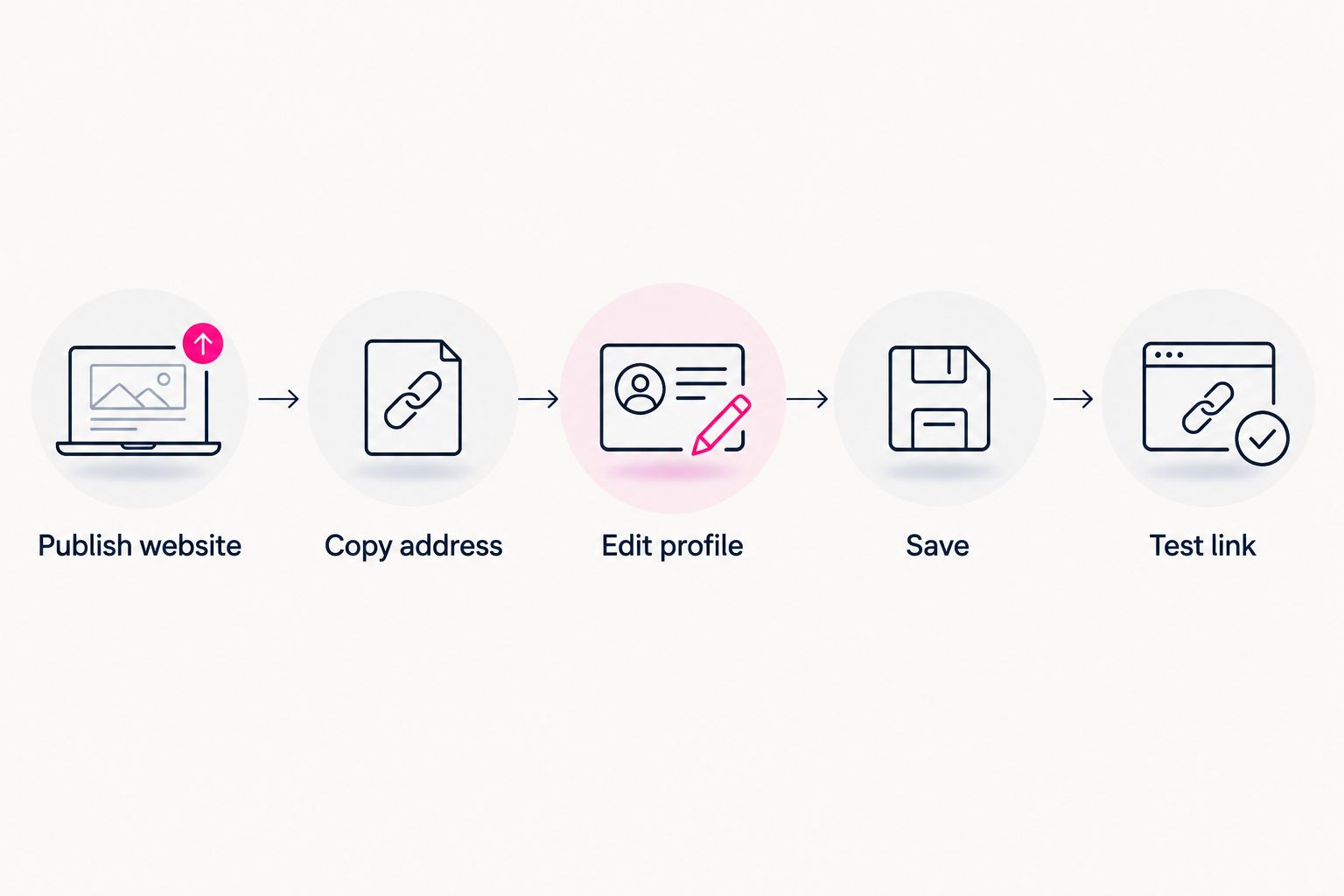
Publish and check the public address before saving it on your X profile.
Do not judge the setup only by the text displayed on your profile. X can shorten how an address appears. The useful check is where the saved link actually takes you.
Mobile verification
- Open your X profile on your phone and tap the saved website link.
- Check that your name, page introduction, and main action are understandable without hunting through the page.
- Tap the main destination button. Confirm that it reaches the intended account, product, or inquiry route.
- Return to the creator website and test the remaining important buttons.
- Repeat the website check in your phone’s regular browser if the in-app browser behaves differently.
Expected result: the path works from profile to website to destination—not just from a copied URL in your desktop browser.
Use 2 checks for your 2026 launch: test while signed out, then test from the saved X profile. These checks catch different problems: account-only access and an incorrectly saved address.
For a more detailed inspection, follow the guide to checking your content creator website on mobile. Focus on readable labels, accessible buttons, and correct destinations before adding decorative changes.
Update your website whenever your main offer changes
Once your profile points to a stable creator website, routine updates happen on that website. You do not need to replace the X profile link just because a featured destination changes.
- Open your creator website’s editing workflow.
- Update the relevant destination, button label, or content using the controls your builder provides.
- Preview the revised page and confirm that the main action is still clear.
- Publish the change through your builder’s publishing workflow.
- Open the website from your X profile and test the updated destination.
Expected result: visitors reach the updated page through the same profile address.
This workflow suits a new release, a changed booking destination, or a different featured subscription link. It does not require a new domain for each campaign.
Choosing the right fit
Choose the update route that matches what actually changed. Neither route needs to become a recurring chore.
| Workflow | Best for | Advantage | Trade-off |
|---|---|---|---|
| Update destinations on the same website | New releases, featured links, and changing priorities | Keeps the profile address consistent | Requires you to maintain the website’s content |
| Replace the address in X’s Website field | Moving to a different public website address | Sends profile visitors directly to the new address | Requires another profile edit and a fresh link test |
Keep the address stable when only the content changes. Replace the profile URL when the website address itself changes.
AkaMe’s link-in-bio website builder fits the first workflow: a personalized destination linking to the subscriptions, products, or services you already run elsewhere. If you want direct control over website building and domain configuration, Carrd is also a relevant option to consider.
Troubleshooting your X website link
The saved link opens the wrong website
Open Edit profile, inspect Website, and compare it with the public address in your browser. Replace an old address or a typing error, then select Save.
Test from the public profile again. Editing the field without saving does not complete the change.
Visitors see a login screen or preview
Replace the editor or preview address with the published public address. Test it in a private browsing window before saving it to X.
If the published site itself requires access, resolve that in your website’s publishing settings or with your provider. Changing the X bio cannot make a private page public.
The website opens, but a button goes to the wrong account
Correct the destination on your creator website, not in X’s Website field. A working profile link and an incorrect page button are separate issues.
Copy the intended public destination, update the button, publish, and test again. Pay particular attention when you manage multiple accounts on the same platform.
The page behaves differently inside X
Open the same website in your phone’s regular browser. This separates an in-app browsing issue from a problem with the public page.
If only an embedded element fails, check that element with your website provider. Keep essential destinations accessible through ordinary links rather than making visitors depend on a single embedded feature.
X shows a warning instead of opening the destination
Check the exact address and confirm that the site loads normally in a regular browser. Review the warning and use X’s help or appeal process when appropriate; changing the spelling of a blocked address is not a fix.
A custom domain does not guarantee exemption from platform restrictions. Resolve the underlying issue before directing visitors to the page again.
Customize your workflow
Treat your 2026 profile link as a maintained route, not a one-time decoration. Review it when you change your creator name, main offer, or public website address.
Make the website easier to use before adding more destinations. Put your main action first, group related links, and give business inquiries a clear label. A recognizable page is useful only when visitors can understand its choices.
Photo selection assistance can help you narrow your options, but keep the final choices aligned with how you present yourself. Preview the page as a visitor, not just as its owner.
FAQ
How do I connect my creator website to my Twitter bio?
Open your X profile, select Edit profile, paste your published website address into Website, and select Save. Open the saved link from your public profile to confirm that it reaches the correct page.
Should I put my website in Bio or Website on X?
Use the dedicated Website field for your creator website address. Keep Bio focused on describing your work and giving visitors a short, relevant direction.
Do I need an integration to connect my creator website to X?
No integration is needed to add a website link to your X profile. You only need access to the profile and a published public website address.
Can I change my creator website without changing my Twitter link?
Yes, you can update your website’s content while keeping the same profile link if the public website address stays unchanged. Publish the updates and test them through your X profile.
Can I link to a creator website that includes my OnlyFans page?
A creator website can organize an existing OnlyFans destination alongside other relevant links. Follow the applicable platform rules, use clear labels, and test the complete route before sharing it.
Why does my creator website work for me but not for visitors?
You might have copied a private preview or an address that requires your login. Open the intended public address in a private browsing window, then replace the profile link if necessary.
Is AkaMe a good fit for a Twitter creator website?
AkaMe fits creators who want a personalized website on a unique domain with registration and publishing handled for them. It brings links to existing subscriptions, products, and services together rather than replacing those tools.
One last thing
Test the second tap, not just the first. Reaching your homepage proves that the profile link works; reaching the intended destination proves that the visitor’s route works.
Before your next 2026 profile update, follow that complete path yourself. Then preview an AkaMe creator website, personalize it, and explore a domain that fits your creator name.
Preview your creator website
Personalize your page, preview it before checkout, and explore a domain for your creator name.