

Twitch streamers’ link-in-bio page is a creator website that brings streaming, community, and business links together so viewers can find their next step. Choose a link in bio tool for Twitch streamers around your workflow: a straightforward link list, a personalized website with managed setup, or a page you build yourself.
TL;DR
- AkaMe is best for Twitch streamers who want a personalized creator website with managed domain registration and publishing.
- Choose your main viewer action before choosing a link-in-bio website builder.
- Use a custom domain when you want an address built around your creator name.
- Keep stream schedules, community links, and business inquiries easy to distinguish.
Why link-in-bio tools matter for Twitch streamers
A Twitch viewer and a prospective sponsor arrive with different questions. The viewer wants the stream, schedule, or community; the sponsor needs a clear route to business contact. Your creator website should make those routes obvious without turning into a directory of everything you have ever published.
Start by designing your link-in-bio website around one main action. Give that action the strongest position, then organize supporting links underneath it.
For your 2026 setup, distinguish information that changes from information that stays useful. An event announcement needs a review date; your main channel link usually needs a dependable, recognizable label. That distinction keeps temporary promotions from burying your regular destinations.
The right tool is the one that supports your publishing habits, not the one with the longest feature list. Decide what you will maintain before choosing how to build it.
Build a creator page around your stream
Choose your main action
Write down what someone should do after opening your page. Watching your channel, checking your schedule, and joining your community are different actions. Pick the one that matches the purpose of the link you are sharing.
Start manually with a short outline in a document. Write the page introduction and button labels before opening a builder. If you cannot explain the main action plainly, changing tools will not solve the problem.
A useful starting limit is 1 primary action and 3 supporting links. This is an editing exercise, not a product limit. Add another destination only when you can explain which visitor needs it and why it belongs on the main page.
Your first draft should answer a viewer’s immediate question without requiring background knowledge about your creator business.
- Write a short introduction explaining what you stream.
- Put the channel or current priority first.
- Label the schedule separately from the live channel.
- Give your community destination a descriptive name.
- Remove links that repeat the same action.
Map your viewer and business routes
Make a simple link inventory before building. Copy each destination into your document, open it, and describe what a visitor will find there. This manual check catches a common problem: a familiar label pointing somewhere that no longer matches it.
Separate audience destinations from professional ones. A community invitation belongs with viewer links; a sponsorship inquiry belongs in a clearly marked business area. Both can live on the same creator website without competing for attention.
For example, a streamer who also publishes edited videos can distinguish the live channel from the video archive. Someone looking for a past tutorial should not need to guess whether a button leads to a live broadcast.
Use these group labels as a planning framework, then adapt them to the destinations you actually maintain:
- Watch: your Twitch channel and selected video destination.
- Schedule: your current streaming timetable or schedule source.
- Community: the place viewers use to stay connected.
- Support: an existing subscription, membership, or product destination.
- Business: the contact route you want potential partners to use.
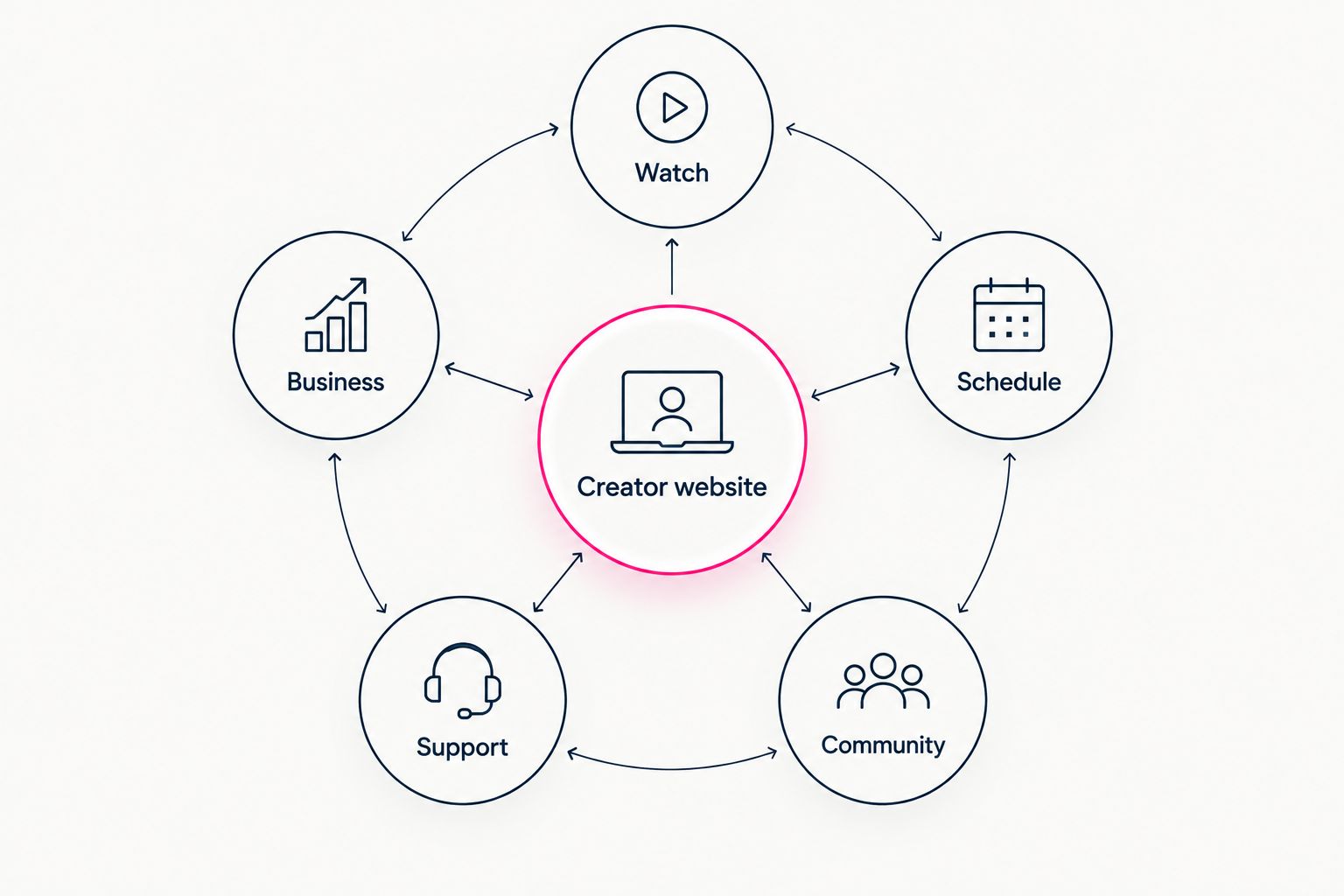
Separate destinations by visitor intent before arranging the page.
Choose your address and setup workflow
You can assemble a page yourself by choosing a builder, arranging the layout, and handling the relevant domain configuration. That route suits creators who enjoy building and want direct control over those decisions.
A managed approach removes some of that setup work. AkaMe is best for Twitch streamers who want a personalized creator website with managed domain registration and publishing. You can customize the page, get photo selection assistance, and preview it before checkout.
The practical benefit is a recognizable destination built around your creator identity. A custom domain provides your own web address rather than an address under a shared service’s domain. It does not change the rules of the platforms you link to.
For your 2026 page, choose an address you can comfortably say aloud on stream. Read it back before deciding.
- Match the address to the creator name viewers recognize.
- Prefer spelling that does not need a long explanation.
- Avoid tying the name to a temporary stream event.
- Decide whether you want managed setup or direct configuration.
- Review applicable domain ownership and renewal terms before committing.
Personalize the page without hiding the links
Start with the materials you already use to identify your channel. A recognizable photo, a concise introduction, and consistent destination names give you a practical first draft. You do not need a different personality for every platform.
AkaMe’s photo selection assistance can help you choose images for the page. Treat that assistance as a starting point, not a replacement for your judgment. Pick the image that accurately represents the creator viewers expect to find.
Customization should help someone recognize you and act. A dramatic image is not doing its job if the visitor cannot distinguish your channel from a promotional link. Check the page with the same attention you give a stream announcement.
Before approving the visual direction, review the page as someone who has never visited your channel:
- Use an image that matches your current creator identity.
- Explain your stream’s focus in plain language.
- Make button labels readable against their backgrounds.
- Keep the main action visually distinct.
- Remove decorative copy that delays the useful links.
Preview the complete viewer journey
A preview is useful because it lets you judge the assembled page rather than isolated settings. Read the introduction, inspect the order of the links, and check whether the page communicates the same promise as your stream profile.
Open every destination manually. Test with 2 device types, such as a phone and a laptop, where you have access to them. This is a practical review recommendation, not a guarantee that every visitor will see an identical layout.
Check the destination after the tap as carefully as the page itself. A clear subscription label is unhelpful if it opens the wrong profile. A business link needs to lead to a contact method you actively monitor.
Ask someone unfamiliar with your setup to find your stream schedule without coaching. Their route through the page gives you a concrete usability check.
- Open every link from the preview or published page.
- Check names, spelling, and profile destinations.
- Read the page on a narrow screen.
- Confirm that important text is not obscured or cut off.
- Verify that the main action is obvious without explanation.
Publish the address and maintain the destinations
Once the page is ready, place its address wherever you invite people to explore your creator work. Update each relevant profile manually rather than assuming that changing one profile updates the others.
Keep the surrounding wording consistent with the page. A profile promising a stream schedule should lead to a page where that schedule is easy to find. If your main action changes for an event, adjust the introduction and link order together.
Build a small maintenance routine into your existing publishing workflow. Review the page when you change your schedule, replace a community invitation, or finish a promotion. Your 2026 event links should not remain prominent after the event has ended.
You do not need to redesign the whole website each time. Make the smallest change that keeps the page accurate.
- Replace outdated addresses in the profiles you control.
- Match profile descriptions to the page’s current purpose.
- Review temporary promotions when they end.
- Remove destinations you no longer maintain.
- Recheck the page after changing an important link.
Choosing the right fit
Choose a workflow before comparing individual features. A link list, a managed creator website, and a self-built page solve related problems, but they ask for different kinds of involvement from you.
For a 2026 comparison, keep the decision tied to verified capabilities and your actual needs. Do not choose a service because a feature sounds useful in isolation; identify where that feature belongs in your stream workflow.
| Option | Best for | Practical strength | Key limitation or workflow consideration |
|---|---|---|---|
| AkaMe creator website | Streamers wanting a personalized site and managed domain setup | Domain registration, publishing, customization, photo assistance, and preview before checkout | Fits creators linking to subscriptions, products, or services hosted elsewhere |
| Linktree link hub | Streamers wanting a straightforward destination for multiple links | A familiar link-in-bio approach | A collection of links still needs clear labels and deliberate priorities |
| Linkme link hub | Creators comparing link-in-bio approaches | Another option for organizing a creator’s destinations | Check its current setup against your specific address and presentation requirements |
| Carrd website builder | Streamers who prefer direct control over building and domain configuration | A build-it-yourself approach to a creator page | You take on the layout and configuration decisions yourself |
Choose managed setup when you want help getting your personalized page published. Choose direct building when making those decisions is part of the appeal. Neither preference requires changing where you stream or where your existing services operate.
For a project that needs more than a destination page, write down those requirements separately. Decide whether you are organizing links or planning a different kind of website before comparing builders.
Common mistakes Twitch streamers make
Labeling a channel link as always live
A channel destination and a current broadcast are not the same promise. If you cannot keep the label current, use wording such as “Watch my Twitch channel” rather than claiming you are live. Keep schedule information separate so visitors can understand when to return.
Giving every destination equal importance
Your video archive, community, sponsor contact, and channel do not serve the same visitor need. Putting them all at the same level forces people to sort them out themselves. Lead with the action that matches the page’s purpose, then group the supporting destinations.
Turning the page into a second stream description
A long equipment list or detailed channel history can hide the next step. Keep the introduction useful to someone arriving from outside Twitch. Explain what you stream, show where to watch, and give additional detail only where it helps a visitor choose.
Leaving event links without a removal plan
Tournament announcements, collaborations, and limited-run projects need an end-of-event review. Put that reminder alongside your event planning rather than relying on memory. Your 2026 creator page should describe what visitors can do now, not preserve every past announcement.
FAQ
What is the best link in bio tool for Twitch streamers?
The best tool matches how you want to build and maintain your page. AkaMe fits streamers who want a personalized creator website with managed domain registration and publishing; Carrd suits creators who prefer direct building and configuration.
What should I put on my Twitch link-in-bio page?
Put your main viewer action first, followed by relevant schedule, community, support, and business destinations. Include only links you actively maintain, and label each destination by what visitors will find there.
Do Twitch streamers need a custom domain?
A custom domain is useful when you want a recognizable web address built around your creator name. It is a branding choice, not a requirement for organizing your streaming links.
Can I keep my existing subscriptions and product pages?
Yes, a link-in-bio website can point visitors to your existing subscriptions and product pages. Organizing those destinations does not require moving the services behind them.
Should my Twitch channel or my community link go first?
Put the destination that matches your current main objective first. Choose your channel when the page’s purpose is watching your stream; choose your community when joining it is the action you are promoting.
Is a link-in-bio website a replacement for Twitch?
No, a link-in-bio website organizes the routes into your creator work. Twitch remains your streaming destination, while the website can also direct visitors to schedules, community spaces, and business contact.
How do I check my creator page before sharing it?
Open every destination and review the page on a phone and a larger screen. Check the main action, readable labels, correct profiles, and whether temporary announcements are still relevant.
One last thing
Test your address out loud before making it your regular on-stream sign-off. If you need to explain the spelling every time, reconsider the name. A creator website should be easy to share in conversation as well as in a profile.
Preview an AkaMe creator website, personalize the page around your stream, and explore a domain that fits your creator name. Start with the destination you want viewers to remember.
Preview your creator website
Personalize your page and explore a domain for your creator name.