
An OnlyFans link in bio is a creator landing page that brings your subscription link and other destinations together so visitors can find the right next step. For your 2026 page, prioritize a recognizable name, a suitable photo, a clear subscription button and a personal domain—not a crowded directory.
TL;DR
- Your OnlyFans link in bio should prioritize identity, a subscription button and a few useful supporting links.
- AkaMe fits creators who want a custom-domain creator website connecting their existing platforms.
- Choose photos and button labels that make your destination clear before visitors tap.
- Preview the mobile page and test every destination before publishing.
Why a creator landing page matters for OnlyFans creators
Your social profile introduces you. Your landing page helps visitors decide where to go next. Those are different jobs: a profile shows your content, while a landing page organizes your subscription, social and business destinations.
AkaMe is best for creators who want a custom-domain website linking to their existing platforms. AkaMe brings those links together on a personalized creator website, with domain registration and publishing handled for you.
OnlyFans creators also need to separate different visitor intentions. Someone looking for your subscription page should not have to scan collaboration information, secondary profiles and unrelated recommendations first. Someone contacting you for business should have a clearly labeled route of their own.
For a 2026 page, start with that distinction. Give your main destination priority, then add supporting links only when they serve a separate purpose. Your page does not need to repeat everything your social profiles already contain.
Build your OnlyFans link in bio around the next tap
1. Choose the main action before adding links
Decide what you want a new visitor to do first. If your subscription page is the priority, make that the main button. If you are promoting another part of your creator business, give that destination priority instead.
Start with 1 primary button and up to 3 supporting links as a drafting limit. This is an editing rule, not a performance benchmark. It forces you to distinguish essential destinations from links that are present only because you have them.
Write the button label before choosing the layout. A specific destination such as “Visit my OnlyFans” tells visitors more than “Find out more.” Keep the wording accurate to what opens next; curiosity should not depend on hiding the destination.
- Name your main destination plainly.
- Put its button ahead of supporting links.
- Give each supporting link a different purpose.
- Remove duplicate routes to the same destination.
- Save temporary campaign links for active campaigns.
2. Make your identity recognizable immediately
Use the creator name people already recognize from your social profiles. Add a photo that remains clear when displayed small, then write a short introduction explaining what visitors can find on the page.
Keep the introduction useful. A sentence about your creator work or the destinations below is enough; a full biography pushes the buttons away from the opening view. If you use different usernames across platforms, explain the connection briefly rather than expecting visitors to work it out.
Choose imagery for recognition and context. For this landing page, that means a suitable portrait or creator image—not an explicit preview. The page's job is to identify you and direct visitors, while each destination presents its own content.
- Use a consistent creator name.
- Select a photo with a clear focal point.
- Write a short, informative introduction.
- Explain any important username differences.
- Check that text remains readable against the image.
3. Combine your domain, setup and customization decisions
A personal domain gives you a distinct address to share. Choose a name you can say aloud, type accurately and use consistently across your creator profiles. Read it without spaces before deciding; a phrase that looks clear in a username can become confusing as a domain.
You can build a page and configure its domain yourself. That route suits creators who want direct control over the setup and are comfortable managing the publishing details.
For a more guided route, AkaMe is a link-in-bio website builder that handles domain registration and publishing, supports customization and provides photo selection assistance. Photo ranking helps you evaluate choices; you still decide which image represents you. Previewing before checkout lets you assess the page as a whole rather than judging separate settings.
For your 2026 setup, choose based on how you want to work—not on how many settings a builder lists.
- Choose a domain that matches your creator identity.
- Read the address aloud before committing.
- Decide between direct setup and handled publishing.
- Select the photo yourself after reviewing suggestions.
- Preview the name, image and buttons together.
4. Arrange links by visitor intent
Group your destinations around what visitors want to do. Subscription access belongs near the top when it is your primary goal. Social profiles help people follow your public work, while a business contact route serves a different audience.
This does not mean adding a heading above every button. On a short page, order and wording can provide enough structure. On a longer page, simple groups help distinguish subscriptions, public profiles and business inquiries without turning the page into a menu of equal-looking choices.
Your creator website can connect tools you already use. It does not need to replace the platform that hosts your subscriptions, sells your products or handles your services. Keep each destination's role clear.
- Put subscription access in the primary position.
- Group public profiles under social profiles.
- Label business contact separately.
- Add shop links only when they serve your audience.
- Remove destinations you no longer maintain.
A useful layout is a central creator page with clearly separated destinations: subscription access, social profiles and business contact. That structure gives each link a reason to be there.
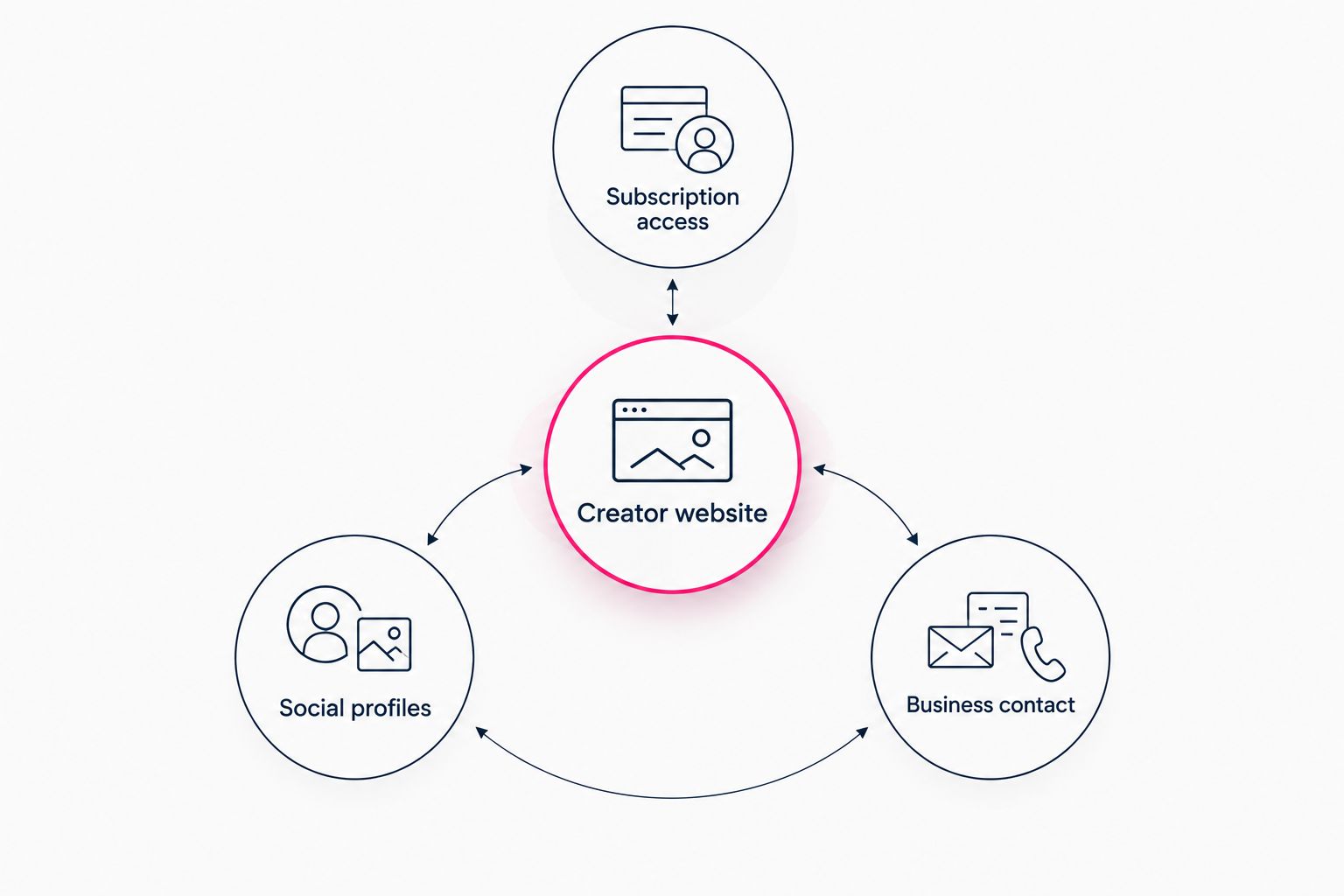
Organize destinations by visitor intent rather than giving every link equal priority.
5. Preview the page as a mobile visitor
Open the preview on your phone and start at the top. Can you recognize the creator and identify the main action without studying the page? If the opening feels crowded, shorten the introduction or move secondary information below the main button.
Use the first phone screen as a practical review boundary, not a fixed design measurement. Screen sizes differ. The test is whether the beginning of the page establishes who you are and what visitors can do next.
For a 2026 mobile review, check the actual button labels rather than relying on how they looked while editing. Long labels, awkward line breaks and tightly packed links are easier to spot in context. A preview is also the right place to reconsider a photo that competes with the text.
- Check the opening view on your phone.
- Read each button label without surrounding context.
- Shorten labels that wrap awkwardly.
- Confirm the photo does not obscure important text.
- Move less important information farther down.
6. Test the complete route before sharing
A finished-looking page is not the same as a working visitor journey. Open each button and confirm that it reaches the intended destination. Check the profile name there too; an old account link can look valid while sending visitors to the wrong place.
Test from a browser where you are not already signed in. That shows you more of what a new visitor encounters, including any destination-specific sign-in or access requirements. Describe the destination accurately rather than promising that every visitor will reach the same screen.
When reviewing external destinations, follow the current rules of the social platform where you share your bio link. A personal domain is a branded address, not an exemption from platform policies. Keep this check practical and focused on your actual publishing workflow.
- Open every destination from the preview.
- Confirm that account names are correct.
- Check the route while signed out.
- Remove broken or outdated links.
- Publish only after completing the full journey.
Choosing the right fit
Choose a setup around the work you want to handle yourself. A direct profile link is simple, a shared link page organizes destinations, and a personal-domain website gives you a distinct address. None of those choices changes where your underlying subscriptions are hosted.
For your 2026 comparison, focus on the page you need to publish. Review the current setup workflow for any service you consider rather than assuming that similarly named features work identically.
| Option | Best for | Main benefit | Trade-off or decision point |
|---|---|---|---|
| AkaMe | Creators wanting a personalized, custom-domain link-in-bio website | Domain registration, publishing, customization and photo selection assistance in a guided workflow | Choose it for connecting existing destinations rather than replacing your subscription platform |
| Carrd | Creators who prefer direct control over building and domain configuration | A hands-on route to creating a standalone page | You take responsibility for more building and configuration decisions |
| Linktree | Creators evaluating a dedicated link-page workflow | Brings multiple destinations into a link page | Check its current domain and publishing options against your requirements |
| Linkme | Creators considering another link-page service | Provides an alternative workflow for presenting creator links | Evaluate the current editor and domain setup before choosing |
| Direct OnlyFans profile link | Creators who need to send visitors to a single destination | No intermediate landing page to maintain | Does not organize your other social or business destinations |
Choose the workflow you want to maintain. If you enjoy arranging and configuring a website yourself, direct control matters. If you want help getting a personalized page published, a guided setup is the more relevant criterion.
Common mistakes OnlyFans creators make
Giving every destination the same priority
A subscription page, an inactive profile and a business inquiry route do not serve the same purpose. Decide which action matters most and make the order reflect it. Supporting links should support the page, not compete with its main task.
Using vague labels to conceal destinations
“Secret link” or “You know where” asks visitors to guess. Use a label that identifies the platform or purpose. Clear wording helps people choose knowingly and gives you an accurate description to check when testing.
Turning the page into a second social feed
A landing page does not need every image, update and caption from your profiles. Select enough material to establish identity, then let the destination do its own job. Keep the route to your main button easy to follow.
Treating the first draft as finished
Your first photo choice or link order is a starting point. Preview the complete page before committing, then review it when your destinations change. A polished introduction cannot compensate for a button that still points to an old account.
FAQ
What should I put in my OnlyFans link in bio?
Include your creator name, a recognizable photo, a short introduction and a clearly labeled subscription button. Add supporting social or business links only when they serve a separate visitor need.
Should I link directly to OnlyFans or use a landing page?
Use a direct link when you only need to send visitors to your OnlyFans profile. Use a landing page when you also want to organize social profiles, business contact information or other destinations.
Is AkaMe a good fit for an OnlyFans creator website?
AkaMe fits creators who want a personalized website on a unique domain linking to their existing platforms. It handles registration and publishing and provides customization, photo selection assistance and a preview before checkout.
Do I need to move my subscriptions to my creator website?
No, a link-in-bio website can send visitors to the platform where your subscriptions already live. Label the button clearly so visitors know which destination opens next.
How many links should my creator landing page have?
Start your draft with one primary button and up to three supporting links. Treat that as an editing limit, not a universal rule; keep additional links only when they serve a distinct purpose.
Can I preview my creator website before checkout?
AkaMe provides a preview before checkout. Use it to review your photo, creator name, customization and destination labels together before deciding.
One last thing
Read only your button labels, from top to bottom. They should explain the page even without the photos or introduction. If they sound interchangeable, rewrite them before adding anything else.
Preview an AkaMe creator website, personalize it with your chosen photo and links, and explore a domain that matches your creator name.
Preview your creator website
Personalize your page, review your links and explore a domain that matches your creator name.